Adding Flash Files to a Webpage in Dreamweaver

Dreamweaver can insert Flash video (FLV) files, as well as Flash files with the SWF extension. In the last issue, I used Dreamweaver to add Flash video to a webpage; this time, you’ll learn how to insert Flash files with the SWF extension. The process is similar to inserting an image file, but Dreamweaver has more settings for Flash.
1 CREATE OR ACQUIRE A FLASH FILE
For this tutorial, we assume that you already have a completed Flash file (in SWF format) and you want to add it to your webpage using Dreamweaver. To create a Flash file, like the Turtle Puzzle game we’re using, you’ll need Adobe Flash or a similar program that supports the Flash format. Because Flash is an open standard, you can create Flash files with a variety of programs, including Adobe Photoshop Elements, which uses the Flash format to save automatically generated Web galleries.

KEN RIDDICK
2 SAVE FILE TO YOUR ROOT FOLDER
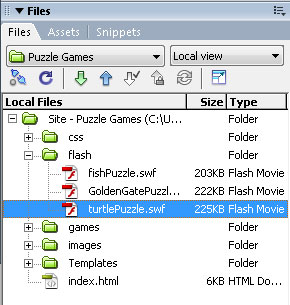
Before you start, move or save the Flash file into your root site folder. If you prefer, you can create a subfolder to store your Flash files. If you’re not sure what a root folder is or how to define a root folder in Dreamweaver, refer to my online tutorial, “Defining a Site in Dreamweaver,” at www.layersmagazine.com. Defining a site enables you to manage files and folders without breaking links using Dreamweaver’s Files panel (shown here).
3 OPEN OR CREATE A NEW PAGE
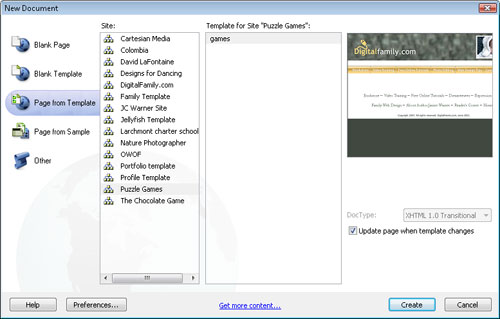
To add a Flash file to a webpage, open an existing page or create a new document by choosing File>New and specifying the file type in the New Document dialog. In this example, we’re creating a new page from a Dreamweaver template. You can add a Flash file to any webpage. In any case, it’s always good practice to save a new page before inserting a Flash file.
4 USE THE INSERT FLASH OPTION
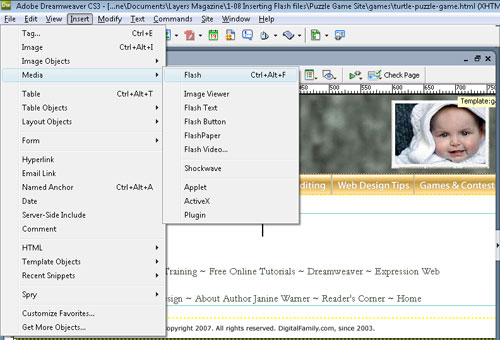
Click to insert the cursor where you want the Flash file to appear on your webpage and choose Insert>Media>Flash. Alternatively, you can use the Insert Media button from the Common Insert bar at the top of the Dreamweaver workspace.
5 LOCATE THE FLASH FILE
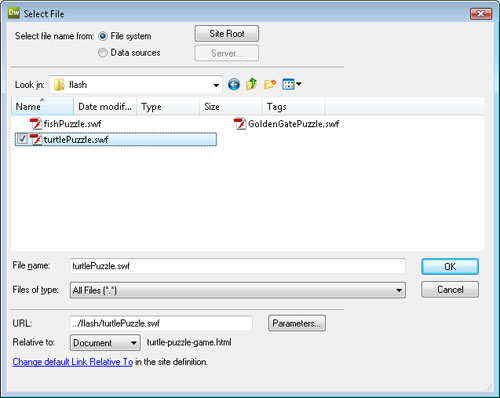
In the Select File dialog, browse your drive to locate the Flash file that you want to insert in your page and double-click on the file to select it.
6 SET ACCESSIBILITY OPTIONS
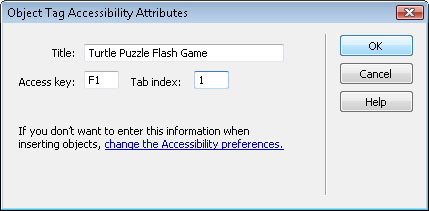
If you have accessibility options turned on, you’ll be prompted to add alternative text. Enter a short text description of the Flash file. Use the Access Key and Tab Index options in the Object Tag Accessibility Attributes dialog to include a key command to start or control the Flash file if you want to provide an alternative to those with accessibility challenges. Click OK to close the dialog and the Flash file is inserted into your page.
7 SPECIFY FLASH SETTINGS
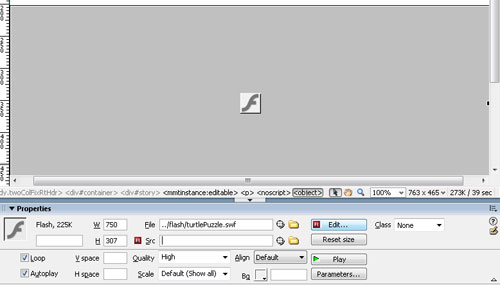
Dreamweaver displays Flash as a solid, gray box with the dimensions of the Flash file. Click on the gray box to display the Flash options in the Property inspector at the bottom of the workspace. As you’ll learn in the following steps, you can use these options to alter the size of the Flash file and the way it’s displayed on your page. Clicking the Edit button will open the file in the Flash program (if you have the program on your hard drive).
8 PREVIEW WITH THE PLAY BUTTON
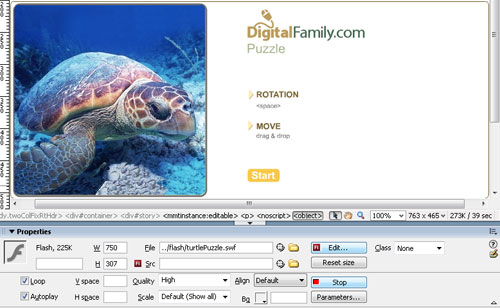
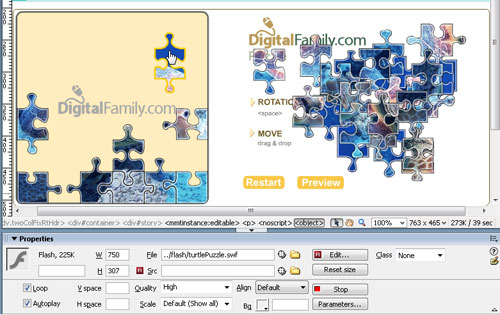
Click on the Play button in the Property inspector to play the Flash file. In this example, the Flash file is a puzzle game so clicking the Play button displays the game options and images. (Note: When the Play button has been activated, the button text changes to Stop.)
9 TEST THE FLASH FILE
When the Play button is clicked, all the features of a Flash file are activated using the Flash Player, just as they would if the file were displayed in a Web browser. As you can see here, we’re testing this Flash puzzle game by clicking-and-dragging to move the pieces into place.
10 ADJUST LOOP AND AUTOPLAY SETTINGS
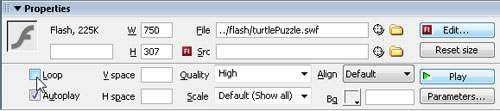
You can make a number of adjustments to the way a Flash file displays by changing the settings in the Property inspector. Check the Loop box to set the file to replay continuously; uncheck the box if you want the file to play only once. Checking on the Autoplay box causes the file to begin to play as soon as the page is loaded into a browser.
11 SPECIFY OTHER OPTIONS
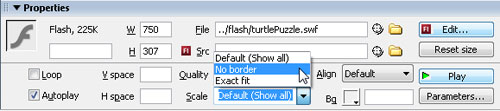
Change the Scale setting to specify if the Flash file will have a border. Use the Quality setting to control the file quality that will be displayed. Note: The higher the quality, the longer it will take to download.
12 UPLOAD THE SCRIPTS FOLDER
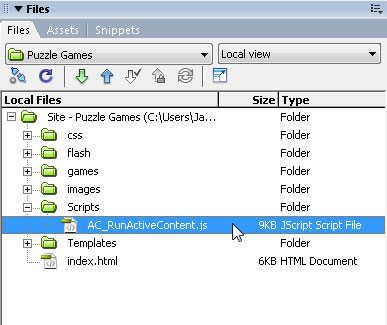
When you insert a Flash file as we did in this tutorial, Dreamweaver automatically creates a script file to accompany it and saves it in a folder, appropriately called “Scripts.” Make sure to upload the entire Scripts folder when you publish your Flash file and webpage to your server or it may not display properly.
13 PREVIEW IN A BROWSER
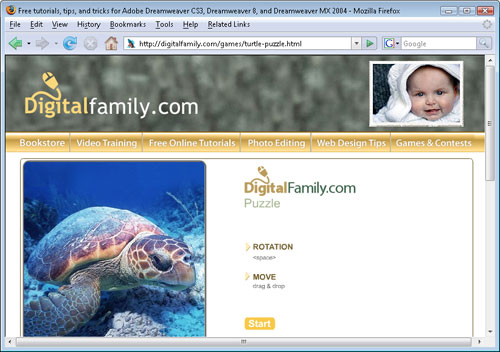
It’s always good practice to preview your work in a Web browser after you upload it. You can also preview your pages in a browser on your local hard drive. And here’s a tip: When you preview a page with a Flash file and the JavaScript locally, Internet Explorer treats the script as a potential threat on your hard drive and prompts you with a security warning in the Information Bar. This shouldn’t happen when the page is published and viewed online in Internet Explorer, and Firefox (shown here) doesn’t use a security prompt with Flash.