Animated Swirls in Adobe After Effects

Animated swirls are all the rage in the motion graphics world, and there are some pretty cool things that can be done with them. But creating and animating such elements is really not as difficult and time-consuming as it would seem, even if the shapes are detailed and intricate. Bring on the swirls!

[To download a preview version of this swirls in after effects technique, follow this link. All files are for personal use only.]

1 CREATE ILLUSTRATOR SWIRL
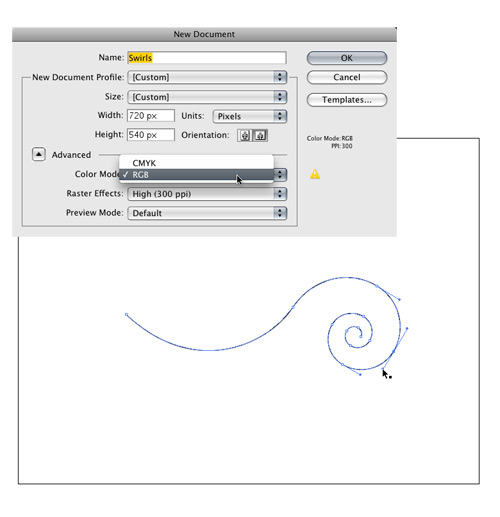
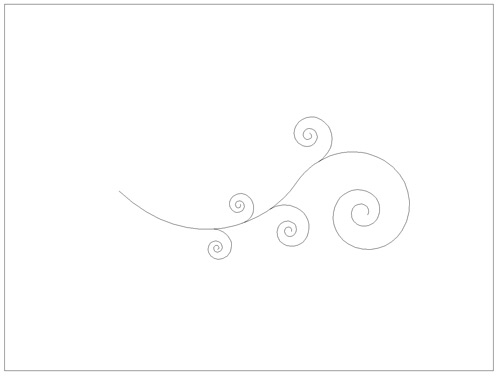
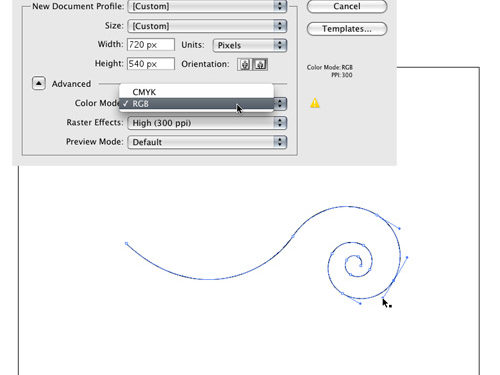
Let’s start out in Adobe Illustrator CS3, by far the best tool for creating such design elements—and as you’ll see, hugely important in providing the actual animation paths for us also (yes, you read that right!). Create a new document called “Swirls” at 720×540 pixels, and set the Color Mode to RGB. Click OK, then using the Pen tool, create the main stem for the left side of your design. Then switch to the Spiral tool to draw the swirl on the right. With the Direct Selection tool, select the right end point of the Pen tool path and the left end point of the swirl path and go to Object>Path>Join to create a single path.

2 ADJUST FILL; ADD LAYER & STROKE
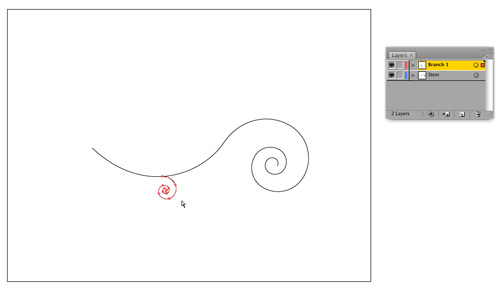
With the path selected, go to either the Toolbox or Color panel, click the Fill icon then the None icon to remove the default white fill, leaving only the black 1-point stroke (going to View>Show Transparency Grid can help confirm this is done). In the Layers panel, double-click Layer 1, rename it “Stem,” and click OK. Then click the Create New Layer icon, rename the new layer “Branch 1,” and use the Spiral tool to draw another swirl coming out from the stem, as shown above.

3 ADD LAYERS & STROKES
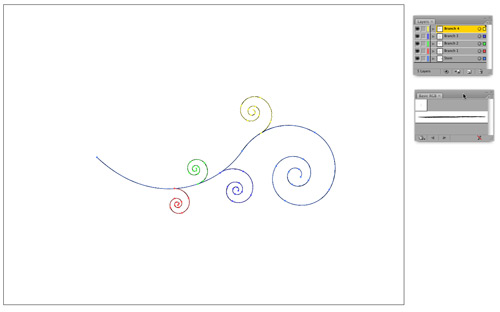
Continue the same steps (new layer, draw new branch swirl, check fill is None) for as many branches you would like to have coming from the main stem. Make sure the branches start at the stem as accurately as possible. (Note: To draw a swirl in the opposite direction, click once on the artboard with the Spiral tool and select the other Style in the Spiral dialog.) In this case, I’ve created a total of four extra branches. Save your document as Swirls.ai at this point, then go to Window>Brush Libraries>Default Brushes, and choose Basic RGB.

4 ADD BRUSH STROKE; ADJUST WIDTH
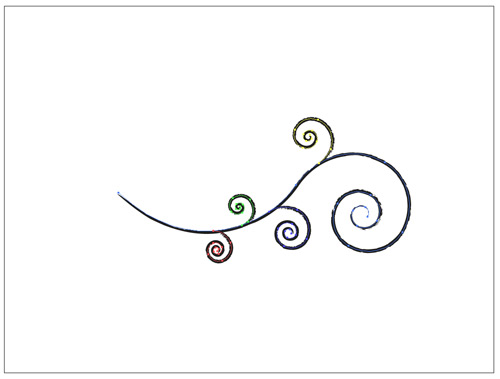
With the Selection tool, select all of the stem and branch elements, and click on the second brush graphic in the Basic RGB panel to apply that style. Feel free to use any of the other Brush Libraries, or indeed create your own, to suit your taste. In the Stroke panel, adjust the Stroke Weight accordingly to achieve the desired effect (1.5 pt in this example). Save the file once more, then switch to After Effects.

5 CREATE MASTER COMP; IMPORT SWIRLS
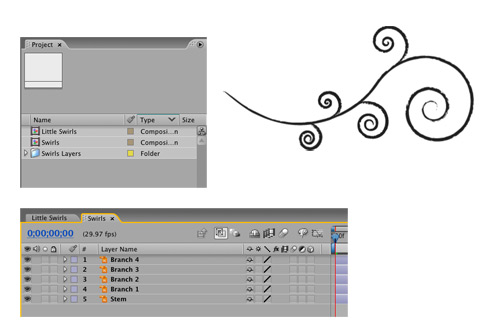
Click the Create a New Composition icon at the bottom of the Project panel, name it “Little Swirls,” and set it to NTSC D1 Square Pixel (720×540) for consistency. Set the length to 8 seconds or so, and click OK. Now, double-click in the Project panel to bring up the Import File dialog, locate Swirls.ai, choose Import As Composition – Cropped Layers, and click Open. Double-click the new Swirls comp in the Project panel to open it. Go to Composition>Background Color and choose white so you can see the swirl elements.

6 EDIT ORIGINAL IN ILLUSTRATOR
Believe it or not, you’ve done the hardest part of the project, and have also unknowingly created the animation paths that will “reveal” the strokes perfectly. Select the main Stem layer in the Timeline, then press Command-E (PC: Ctrl-E) to Edit Original back in Illustrator. Once in the program, go to View>Outline—this is how we want After Effects to see our path shape, as we’re going to copy and paste it. Due to the fact we have a custom brush applied, however, this will most likely not work. So…

7 REMOVE STROKES; COPY & PASTE
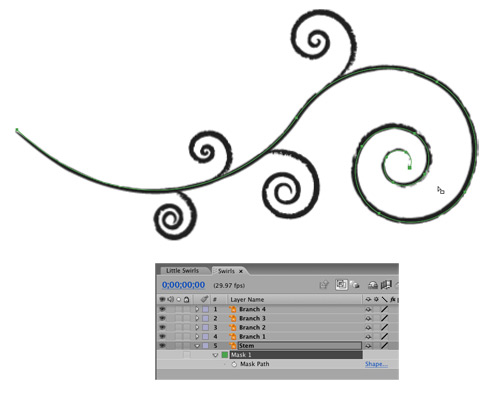
Press Command-A (PC: Ctrl-A) to Select All of the lines, go to the Color panel, click the Stroke icon, and click the None icon to remove the brush stroke. As long as we don’t save this document, our brush strokes won’t be affected. Now target just the Stem layer, and press Command-C (PC: Ctrl-C) to Copy the path into memory. Switch back to AE, and with the Stem layer still selected, press Command-V (PC: Ctrl-V) to Paste the path as a mask shape onto the layer. Double-click on the right side of the path in the Composition panel and drag to align with the brush stroke. Press Enter when you’re done.

8 REPEAT PROCESS(ES)
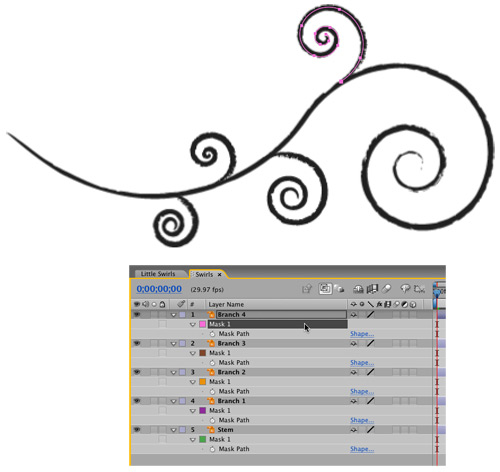
Now switch back to Illustrator and do the same process for the remaining strokes: Target one of the paths in the Layers panel, copy it, switch to After Effects, select the corresponding layer, paste the path as a mask, then nudge it into position if necessary. When all the paths have been copied and pasted, switch back to Illustrator, close the file, and do not save the changes.

9 ADD STROKE EFFECT; ADJUST
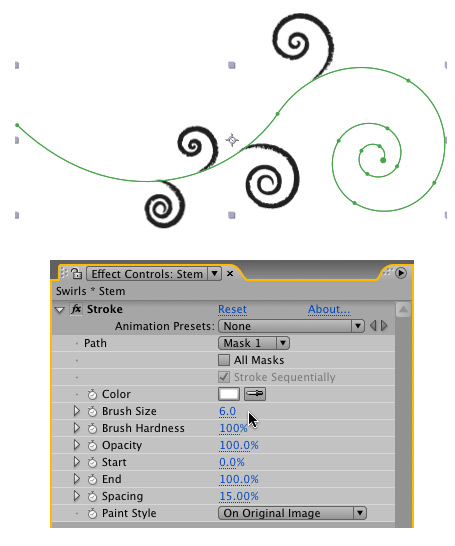
Starting with the stem now, we can create one animation technique that can be re-used on all the other layers. Select the Stem layer and go to Effect>Generate>Stroke; a white stroke will appear on the layer. In the Effect Controls panel (ECP), you’ll see that Mask 1 is selected as the path being stroked. Adjust the Brush Size and Brush Hardness until the original black line is hidden; in my case, a 6-pixel stroke and 100% hardness cover it just fine.

10 ANIMATE STROKE
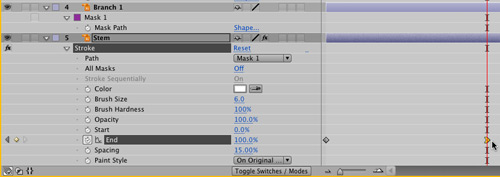
Now drag on the End value and you’ll see your stem drawing perfectly back and forth. See, I told you it was easy, didn’t I? All you need to do now is animate the End value across time. At 0 seconds, click the Stopwatch to set a keyframe for the End value at 0%, move along the Timeline to 2 seconds, and set the End value to 100%. Then Control-click (PC: Right-click) the second keyframe and choose Keyframe Assistant>Easy Ease In. You’ll notice the line is actually erasing itself at this point, but that will change in the next step. Note: Depending on how you created the shape, you may need to animate the Start point instead.

11 SET MASK
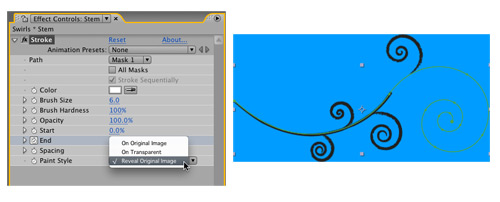
Very cool indeed! There’s one more step, however. If you go to Composition>Background Color and set the color to a blue, you can see all we are doing is using a white stroke to hide/reveal a black stroke—which is no good if you intend to composite these swirls on a different background. Back in the ECP, simply set the Paint Style to Reveal Original Image—perfect! You’re animation should now be drawing the line instead of erasing it, as well.

12 COPY & PASTE EFFECT; ADJUST TIMING
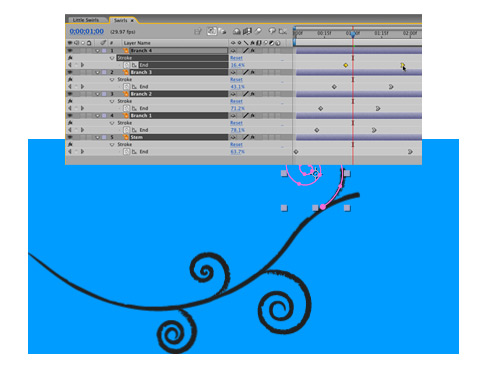
Now the same Stroke effect, including keyframes, can be re-used for the branches. In the ECP, select the Stroke effect name at the top and Copy it. At 0 seconds in the Timeline, select the branch layers and Paste. Now, simply click-and-drag the keyframes in the Timeline to adjust the timing for each branch so that they start to reveal just after the stem has passed by, and your swirl animation is complete!

13 COMPOSITE BACKGROUND; CHANGE COLOR
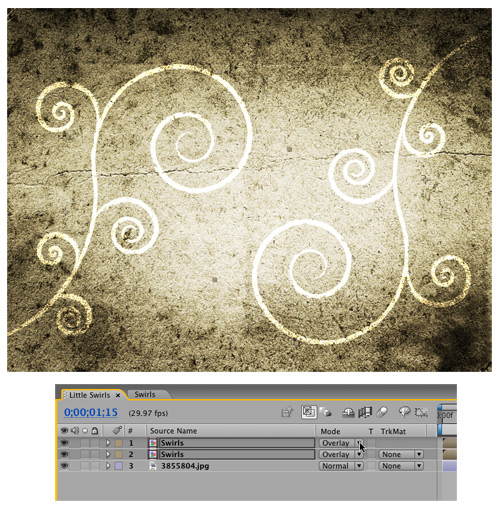
Now switch to the initial Composition you created in Step 5. Import a textured background image, such as this one from iStockphoto.com (#3855804), drag it into the Timeline at 0 seconds, and scale accordingly. Then drag your animated Swirls composition over the top, and duplicate, scale, position and rotate accordingly. Now, go to Effect>Generate>Fill, change the color to white, and set the layer Blend Mode in the Timeline to Overlay. Repeat this step for each of the Swirls comp layers in the Timeline.


PHOTO CREDIT: ©ISTOCKPHOTO/BULENT INCE

14 ADJUSTMENT LAYER; GLOW
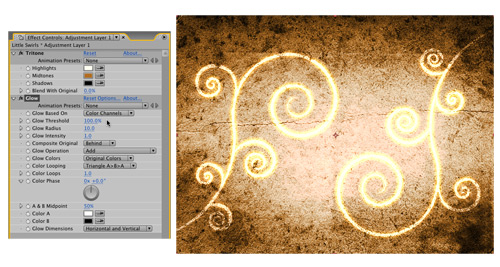
At 0 seconds, go to Layer>New>Adjustment Layer, then Effect>Color Correction>Tritone. In the ECP, change the Highlights swatch to a slight off-white, and the Midtones swatch to orange. Now choose Effect>Stylize>Glow, and set the Glow Threshold to 100% (experiment with the settings based on the background you’re using). Hit 0 on the keypad for a final RAM Preview, and your simple, single-line vector swirls from Illustrator look completely different now, not to mention that their own paths essentially self-animated! Use them creatively. Enjoy!

Visitor Comments »


Nice!


Comment by Daniel E | January 27, 2009 @ 12:24 pm


cool


Comment by khaled | January 28, 2009 @ 12:52 pm


Glad you like it, guys. Don’t forget to check out our Energi Podcast on After Effects, on iTunes. Subscription is free :)

http://itunes.apple.com/WebObjects/MZStore.woa/wa/viewPodcast?id=295971174

Enjoy!

Steve


Comment by Steve Holmes | January 28, 2009 @ 2:36 pm


A non-video tutorial from the MASTER? say it ain’t so, Tintin’ – say it ain’t so… ;)

just clownin’ – keep ‘em coming.

Of all the “toots” out there, I have to say your work for Artbeats on their demo discs is the best! Everything you need to know about AE to turn out work that has a NOW vibe in a few well executed tutorials. Cheers, my friend and Thanks again. [m]


Comment by [ griff ] | January 28, 2009 @ 4:04 pm


I think it would be really helpful if you had a working demo of the animation for your readers to see.

Just a suggestion! Great tutorial though


Comment by Veronic | January 28, 2009 @ 6:31 pm


Very easier way to do it. I always do it a difficult ways. In Photoshop and cut it out and then do a mask on it. but this way seem easier.


Comment by Sawang | January 28, 2009 @ 11:40 pm


thanks! I was just looking forward this things for a long time… great job..

Bob


Comment by Bob | January 29, 2009 @ 5:55 am


Hi Veronic,

On all the Layers tutorials, they supply a link to a finished Quicktime movie preview of the finished animation I have done—I supply one for every tutorial. For some reason, they omitted to include the link on this one, I am sorry on their behalf :(

So very glad this tutorial is being received well by folks, very cool indeed.

And Griff – thanks for the fun comments, my friend. Yes, a non-video tutorial here (as always), but check out the link above to the brand new iTunes Podcast we have been working on in conjunction with Artbeats, those are all video, all HD, and some pretty neat stuff there.

All the best, and thanks for the positive feedback everyone,

Steve “Tintin” Holmes ;)


Comment by Steve Holmes | January 29, 2009 @ 5:28 pm


interesting!


Comment by izah90 | January 29, 2009 @ 9:43 pm


Steve – you’re quite welcome and thanks again for all you do.

I’m all over the podcast and LOVE it! Again, you always bring the freshest vibe to your training. Thank you for not showing us how to do flaming text or a rotating e-mailbox… :)


Comment by [ griff ] | January 30, 2009 @ 7:26 pm


You know me by now, Griff – nothing ordinary ;)

Thanks again for the great feedback, much appreciated.

Steve


Comment by Steve Holmes | January 30, 2009 @ 9:21 pm


Applogies. We forgot to include the preview file that Steve provided us with for his tutorial. There is a link now posted after the first paragraph of the tutorial.

Thanks,
Aaron Westgate
Web Editor


Comment by Web Editor | February 5, 2009 @ 3:31 pm


Gracias Steve, realmente sos un maestro.
Sos mejor que AKramer, jajaja.

Muchas Gracias.


Comment by Alice | February 6, 2009 @ 12:52 pm


i like this animation please send me this animation!


Comment by tariq | February 9, 2009 @ 2:33 am


Gracias Alice, sus palabras son muy amables y divertidos. Me alegra que te gusta los tutoriales. Por favor visite el podcast si tiene tiempo, el vínculo se encuentra en esta página :)

Ciao,

Steve


Comment by Steve Holmes | February 9, 2009 @ 5:27 pm


Tariq,

The finished version of the animation can be downloaded from the link at the top of the page. I’ve also pasted it here for you:

http://www.layersmagazine.com/downloads/julyaug08/ae-preview.zip

Enjoy :)

Steve


Comment by Steve Holmes | February 9, 2009 @ 5:28 pm


i have try to import the swirls to after effect but i the swirls doesn’t appear in sequence…could you please explain why..thanks

regard,


Comment by fairus kamaruzaman | February 17, 2009 @ 3:32 am


Hi Fairus,

I am not sure what problem you are having specifically, but you say you import the swirls and they don’t come in sequence. Do you mean they don’t come in as a layered composition, all separate?

Be sure that they are on separate layers in the original Illustrator file, and then when you import them into AE, be sure to select the AI file and choose to import as Composition – Cropped Layers. This will ensure the layers come in separately. It might be that you are importing the AI file and it’s coming in as one document, all layers collapsed basically. You need to make sure you select Composition upon import, as in Step 5 above.

If this is not correct, then please write here the exact steps you are taking, including each dialog box or menu you choose, so I can isolate where the problem might occur.

Many thanks, hope this helps,

Steve


Comment by Steve Holmes | February 17, 2009 @ 1:53 pm


Cool Tutorial!
Can I download the tutorial in video format?
Because the connection in my country kind of hard to deal with. So I can view the tutorial in video format anytime I need.

Thank you


Comment by Vic | February 18, 2009 @ 5:53 am


…I mean not this swirl tutorial section but the other section with video tutorial inside. I’ve been playing with after effects for a few months and it’ll be great if I can get more reference from great master like you…

Thanks again


Comment by Vic | February 18, 2009 @ 5:58 am


Hi Vic,

I totally understand the connection frustration thing. Sadly, none of these tutorials for Layers are done in video format—these are only online versions of the original tutorials created for printing in the Layers Magazine.

However, we do have a new After Effects Podcast available on iTunes, with free subscription, at the following link. They are available in high-def and iPod format, and we’re getting some really great feedback on them:

http://itunes.apple.com/WebObjects/MZStore.woa/wa/viewPodcast?id=295971174

Hope this helps, and I am sure you will learn new cool things from these too, as well as future Layers tutorials.

Steve


Comment by Steve Holmes | February 18, 2009 @ 5:01 pm


Unfortunately the link u gave me doesnt work in my country indonesia it’s said “Your Request could not be completed. The Item you’ve requested is not currently available in the Indonesian store”. Too bad but thanks again for such a nice reply from you steve I hope the podcast will reach my country ASAP. And I hope we can work together ha ha ha who knows…
I’ll work hard for It…

Thanks again


Comment by Vic | February 19, 2009 @ 1:26 am


Hi Vic,

That’s interesting… I didn’t know. Hmm. Seeing as it’s a free subscription, why don’t you try changing your iTunes Store to the US one (at the bottom of the store’s home page), and seeing if it will let you subscribe from there? Worth a try.

However! There is another option – download the Podcast original Quicktimes directly from the Artbeats site! Why didn’t I think of this before? :)

http://www.artbeats.com/podcast

Means you have to remember to check every 2 weeks for a new one, but at least you have access to the master video. Let me know this works out for you?

Steve


Comment by Steve Holmes | February 19, 2009 @ 1:48 pm


Sorry to trouble you Steve It WORKS! Thanks again, you know im kind of new with this itunes, never play with it before. I download it directly from Apple web site and didn’t change the configuration so i have no idea, and now it works. Oh yeah the latest links also works.

Thanks again sorry to trouble you

Vic


Comment by Vic | February 19, 2009 @ 10:25 pm


I LOVE YOU


Comment by Samer Ziadeh | February 20, 2009 @ 4:02 am


Just a quick note with regards to the issue Fairus was having. If you are working in an older version of After Effects i.e. 7, your CS3 files may not be compatible. Try saving your .ai files as CS2 and then import them into after effects. That should solve your problem.

Thanks for the tutorial Steve :)


Comment by kate | February 23, 2009 @ 4:35 pm


[...] – Animated Swirls in Adobe After Effects [...]
 

Pingback by Feed Reader (Beta) » 40+ Adobe After Effects Best of Tutorials & Resources | March 6, 2009 @ 7:40 am


[...] – Animated Swirls in Adobe After Effects [...]


Pingback by 40+ Adobe After Effects Best of Tutorials & Resources | Feed Reader (Beta) | March 8, 2009 @ 5:24 am


Absolutely wonderful!!
This helped me soooo much in my class assignments.
Thank you so very much!
~Drel


Comment by {Drelmexa} | March 18, 2009 @ 9:33 am


Totally sweet. Rock on!


Comment by CantinaDan | March 19, 2009 @ 6:06 pm


when I paste the paths into AE, the paths are not quite the same size. When I move the points they do not align perfectly, some points are outside the original paths.

I have double checked that the .ai and the comp have the same resolution and square pixels.

I use CS4 for both progs.

Big T


Comment by Big T | March 27, 2009 @ 6:40 am


This was a GReAt tutorial… It was very easy to follow… in just a few minutes I had done the animated swirls I needed for a class project! Thanx!!!


Comment by Betty | April 2, 2009 @ 1:26 pm


Couldn’t get the copy and paste to work from Illustrator to After Effects but nice tutorial!


Comment by Ger | April 27, 2009 @ 2:56 pm


Couldn’t get the copy and paste to work from Illustrator to After Effects, but the tutorial is nice.


Comment by Ger | April 27, 2009 @ 3:02 pm


hmmm…..I can’t seem to get any paths to come over from Illustrator, could there be a setting I am missing somewhere?


Comment by Ger | April 27, 2009 @ 3:13 pm


Nevermind got it! Clipboard preferences. Great tutorial!!! Thanks


Comment by Ger | April 27, 2009 @ 4:18 pm


Hi. I am following this tutorial, but when i try to copy a layer in Illustrator it does not paste in AE. I don’t seem to get it to work. (step 7)
Please help!


Comment by robs | April 29, 2009 @ 8:58 am


[...] Swirls Learn to create animated swirls in Adobe After Effects. [...]


Pingback by The Ultimate Motion Graphics Tutorials Round-Up | Tutorials | Smashing Magazine | May 26, 2009 @ 3:53 am


Works Great :)


Comment by Mara Rose | May 28, 2009 @ 4:20 pm


[...] Swirls Learn to create animated swirls in Adobe After Effects. [...]


Pingback by | The Ultimate Motion Graphics Tutorials Round-Up | May 28, 2009 @ 5:07 pm


Hey, i’ve done everything ok in the AI, but when i swich to AE i can’t see my swirls, i’ve try with the white, and then with the black background to, but again nothing :( pls help i need this


Comment by Christian | June 24, 2009 @ 2:01 pm


[...] Tutorial Link [...]


Pingback by 77 Ultimate Round-Up of Adobe After Effects Tutorials | KolayOnline | June 24, 2009 @ 5:02 pm


Hi Christian,

Can you explain in a few more steps what is happening? Which step in the tutorial are you at when the problem occurs? What precisely is happening?

Then I can start a quick process of elimination, and help you out for sure.

Steve


Comment by Steve Holmes | June 25, 2009 @ 3:15 pm


Hey, im on the step 5, i imported those swirls on After Effect, but when i put them on the composition they are invisible, i think that the problem occurs on the second step

” ADJUST FILL; ADD LAYER & STROKE
With the path selected, go to either the Toolbox or Color panel, click the Fill icon then the None icon to remove the default white fill, leaving only the black 1-point stroke (going to View>Show Transparency Grid can help confirm this is done)”

i was having a problems with this

sorry for asking such a stupid thing but im new with A. Ilustrator, and thanks for helping mi out Steve


Comment by Christian | June 26, 2009 @ 1:20 pm


Hi Christian,

My first thought then is that you don’t have a stroke thickness applied to the swirls when you create them. Can you actually see them in Illustrator? The step says to remove the default white fill, but this is assuming the default black stroke is applied – so just double-check that and let me know?

If you do have the stroke applied, and the layers, and then you are importing as a Comp into After Effects as the steps suggest, then it might be better for me to take a look at the Illustrator file to make sure it’s correct?

Hear from you soon,

Steve


Comment by Steve Holmes | June 26, 2009 @ 2:16 pm


Ohh yeah, that was the problem, i’ve done everything from the start and now i can seee them on the composition in AE, thanks a lot

now i will continue with this tutorial ;)


Comment by Christian | June 27, 2009 @ 4:37 am


Excellent – glad we sorted that out for you Christian. Good luck with the rest of it, have fun :)

Steve


Comment by Steve Holmes | June 29, 2009 @ 12:53 pm


I love this application but I don’t know how to use it very wall. I hope I know how to use it. Tru your assistance.

Thanks for corporation,

Happy Peters


Comment by happy Peters | July 10, 2009 @ 7:58 pm


Awesome. Thanks! Your demo is very cool. Might you do us a tutorial on advanced camera movement??


Comment by Hari Karam Singh | August 27, 2009 @ 5:28 pm


Hi there Hari,

Glad you like the lesson(s). I know that the following lesson I did showed some advanced tricks for camera movement:
http://www.layersmagazine.com/keep-your-eye-on-the-ball-3d-in-after-effects.html

However, sad to say, Layers Magazine have discontinued the After Effects tutorials, so there won’t be any more from me…

You can still access the first 15 After Effects Podcasts I did, which can be found on iTunes under the name Real World Footage Effects, or via this link:
http://itunes.apple.com/WebObjects/MZStore.woa/wa/viewPodcast?id=295971174

I’ll still be responding to feedback on existing Layers tutorials in the future, but sorry to say there won’t be any more from me. Unless enough people write to Layers and demand them ;)

All the best,

Steve


Comment by Steve Holmes | August 27, 2009 @ 7:57 pm


I have problem in import ai file in AE with Layers.
Can you suggest me how its work?


Comment by Prashant | September 7, 2009 @ 4:31 am


Hi Prashant,

Can you be more specific about where it’s going wrong? Which step of the tutorial does the flow break? And can you list the exact steps? A lot of times, it’s to do with not selecting Import as Composition – Cropped Layers part in step 5, and accidentally bringing the file in as a single item and not a layered composition.

Let me know a little more detail, and I’ll be happy to help :)

Steve


Comment by Steve Holmes | September 15, 2009 @ 12:03 am


Hello Steve, I believe I did everything correctly to the point of copying and pasting the path into AE. When I paste on the “Stem” layer in AE, nothing shows up…as if nothing happens. Dont know why? Any suggesstions will be greatly appreciated!

Thanks Steve,

Rob


Comment by Robert | September 24, 2009 @ 8:05 pm


Nothing shows up? One thing this MIGHT be, is the Clipboard preference in Illustrator. Go to Illustrator > Preferences > File Handling & Clipboard, and make sure Clipboard on Quit has PDF turned off, and AICB turned on. Then try copying and pasting again.

Let me know how this works for you,

Steve


Comment by Steve Holmes | September 25, 2009 @ 6:45 pm


Steve,

Thank you very much! You have found the solution! I am now able to paste the path in AE! How did you get to be so great at this???

Rob


Comment by Robert | October 2, 2009 @ 9:11 pm


Hey Rob,

Glad I hit it first try ;) To be honest, 9 times out of ten, a problem copying and pasting a vector path (as a mask or motion data) from Illustrator to After Effects, is directly attributed to that single Preference which should be checked.

The whole copy-and-paste-vector-paths-as-motion-data thing has been in After Effects since version 4.1 (quite some time now, but obviously a rather major event seeing as I can remember it clearly ;) , and it took me ages to figure out why sometimes the copy and paste would work, and other times it wouldn’t.

And still, some ten years later, it’s still something to watch out for.

Anyway, so happy that you got it sorted, and that I could be of service. Enjoy the new techniques!

All the best,

Steve


Comment by Steve Holmes | October 2, 2009 @ 9:35 pm


Hi Steve,
Nice tut, but I can’t import illustrator path anyway. I use CS4 production premium on XP, and I encountered this problem before. I’ve read help files and I checked the box for AICB option in the Files & Clipboard section of the Adobe Illustrator Preferences dialog box…same result – after copying path in Ai there is nothing in Ae clipboard to paste:((( Any suggestion, pls?


Comment by Alex from Moscow | October 9, 2009 @ 8:50 pm


i cannot copy and paste the line after i change the preference..why /_\


Comment by Leo | October 15, 2009 @ 5:03 am


Hey Alex and Leo,

Sorry you’re having troubles (and sorry for my late response, I am currently on vacation in Austria, so how’s this for service!? ;) . I can only urge you to step through the same few processes again. make sure the AICB option in the Illustrator prefs is turned ON, and the PDF option is turned OFF. And be sure to remove the brush stroke from that line before you copy it (otherwise the outer thick shape of the stroke is converted to a mask path when copied and pasted), and be sure to select the layer in AE before pasting the path onto it.
Odd as it sounds, sometimes I do the Copy function (cmd-C) three or four times, as doing it once sometimes doesn’t work. I know it sounds bizarre, but give that a shot for me too, and let me know if it works?
I’ll be off email again for a couple of days as I’m driving and such, but I hope this works – or if not, we can hopefully figure something out for you.
All the best from Austria,
Steve


Comment by Steve Holmes | October 21, 2009 @ 6:59 pm

Leave us a comment

Comments RSS | TrackBack URI

Back to Top


Advertisement
Creative Suite Tutorials
  1. Photoshop Photoshop
  2. Illustrator Illustrator
  3. Indesign Indesign
  4. Dreamweaver Dreamweaver
  5. Fireworks Fireworks
  6. Premiere Premiere
  7. Flash Flash
  8. After Effects After Effects
  9. Lightroom Lightroom
  10. Acrobat Acrobat

Get the latest tips, tricks and news delivered straight to your inbox.

From our Partners
Subscribe to Layers Magazine


  • Back to the Layers Magazine Homepage
  • Creative Suite Tutorials
  • Layers Magazine
  • Reviews on top products
  • Layers Magazine Reader Forums
  • Subscribe to Layers Magazine