
Create Fun, Eye-catching Text with Adobe Illustrator

This time around, we’ll explore the many ways you can manipulate text in Illustrator. By combining color and effects, you can create really fun and eye-catching text in no time at all.

1 TYPE THE TEXT
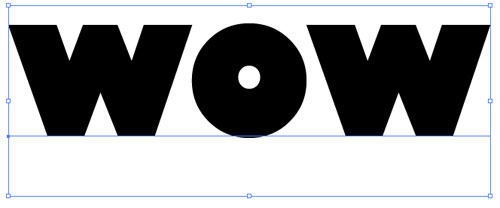
To begin this text effect, we must start with the most critical element—the text. Select the Type tool (T) in the Toolbox and click in the artboard to set a text object. Enter whatever text you like. We entered “WOW” in all caps using the font Gill Sans Ultra Bold. Once entered, scale the text as necessary.
2 DUPLICATE; CONVERT TO OUTLINES
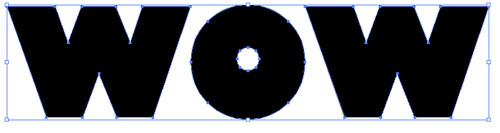
Just in case you want to go back and change the text later, drag the type layer in the Layers panel to the Create New Layer icon to duplicate the text object. Click the Eye icon next to the original text layer to hide it. Select the duplicated text with the Selection tool (V) and convert it to outlines by going under the Type menu and choosing Create Outlines. For the sake of visibility, set the Fill to white and the Stroke to black.
3 FREE TRANSFORM THE LETTERS
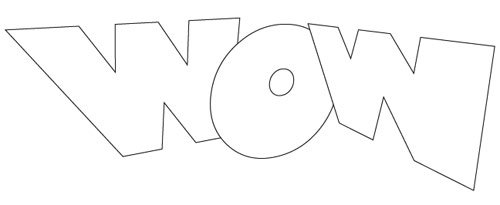
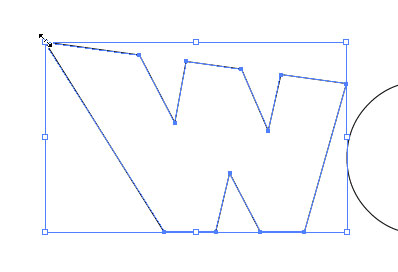
Now we need to distort the individual letters. For this we’ll use the Free Transform tool, which can be a bit tricky. First, make sure all of the letters are ungrouped (Object>Ungroup) and select the first letter with the Selection tool. Switch to the Free Transform tool (E), and click-and-hold on the top-left corner of the transform box. Press-and-hold the Command key (PC: Ctrl key) and drag the corner to manipulate the shape of the letter. The Free Transform tool takes a little practice if you’ve never used it. Continue to do this to the remaining letters, varying the distortion and position of each.
4 DUPLICATE; SET FILL & STROKE TO BLACK
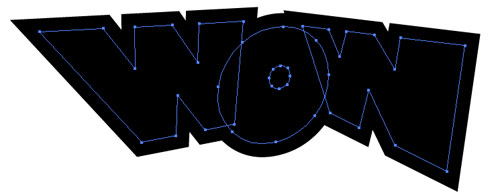
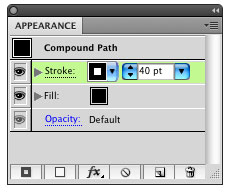
Select all the distorted letters and create a duplicate of these letters just as we did earlier. Move the duplicate off to the side of the artboard for now and reselect the original transformed text. In Illustrator CS4, open the Appearance panel (under the Window menu) and set both the Fill and Stroke to black using the drop-down menu for each property. Also set the Stroke weight to 40 pt. (In CS3, set the Fill and Stroke colors and the Stroke weight in the Control panel.)
5 OUTLINE STROKE
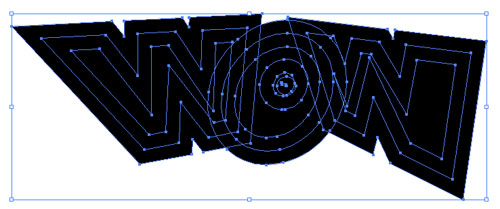
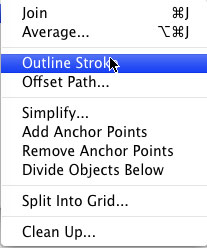
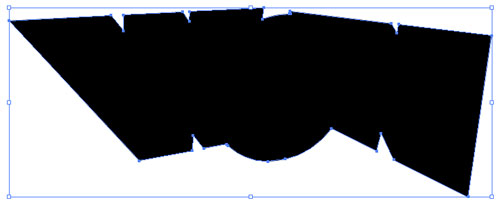
With these objects still selected, go into the Object menu to Path and choose Outline Stroke. This will expand the shape area out to the stroked area, making it a regular shape.
6 UNITE SHAPES
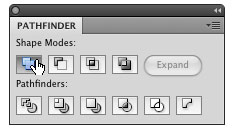
Open the Pathfinder panel from the Window menu. Click the Unite icon, which is the first icon under Shape Modes. (In Illustrator CS3, the Unite icon is called the Add to Shape Area icon, and after you click the icon, you also need to click the Expand button.) This will combine all the expanded shapes into one single shape. This shape will act as our outer border effect. (Note: If you see any stray points inside the shape, use the Ellipse tool to draw a shape over the points, select everything, and click the Unite icon again.)
7 CHANGE FILL & STROKE; THICKEN STROKE
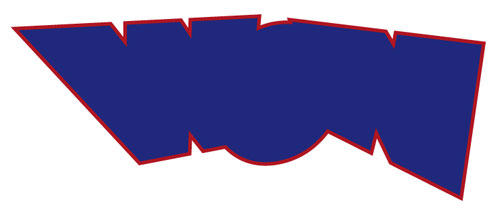
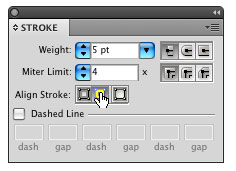
Now we need to change the color of this shape. Open the Swatches panel and set the Fill color to blue and the Stroke color to red. Open the Stroke panel from the Window menu. Set the Stroke weight relatively thick, depending on the size of your art—we used 5 pt in this example. Click the center icon next to Align Stroke to put the stroke on the inside of the shape.
8 POSITION DUPLICATE; CHANGE FILL & STROKE
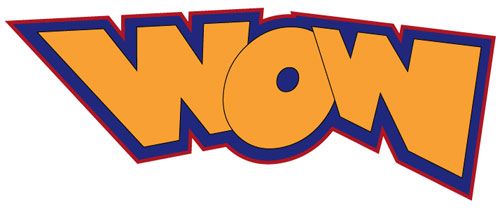
Now go and get the duplicated text that we distorted earlier and position it on top of the border shape. Change the Fill color to an orange and the Stroke to black. Don’t make the stroke too big; make it just enough to define the shape so the two shapes don’t appear to be combined (1 pt in this example).
9 APPLY DROP SHADOW TO LAST LETTER
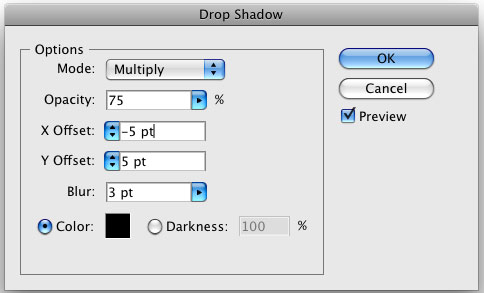
Select just the last letter. Go under the Effect menu to Stylize (under the Illustrator Effects listing) and choose Drop Shadow. Enter –5 pt in the X Offset so the shadow appears more to the left. Enter 5 pt for the Y Offset and enter a 3 pt Blur. (Note: These numbers will vary depending on the size of your art.) Click OK.
10 APPLY DROP SHADOW TO OTHER LETTERS
Select each of the other letters individually and apply the same effect by choosing Apply Drop Shadow under the Effect menu. Apply it to the border shape behind the letters, as well.

11 DRAW HIGHLIGHTS
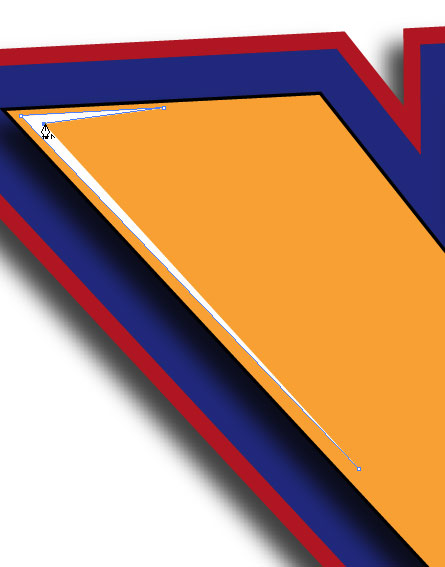
Now we’re going to apply some subtle highlights. Grab the Pen tool from the Toolbox. Set the Fill color to white and the Stroke color to none. Then at various corners of the letters, draw some very small corner shapes to give the letters a little more interest. Continue this on all the letters but don’t get carried away—it’s easy to overwork something until it doesn’t look cool anymore. That pretty much does it. You can see the possibilities here and the many different directions you can go with this. Have fun!

Visitor Comments »


This is perfect! Simple, effective – Just what I needed to complete a down-n-dirty project that was given to me just before lunch. Got back to my desk after lunch, and saw this tutorial on my RSS feed. Exactly the effect I needed! Many thanks!


Comment by Eric | March 24, 2009 @ 3:05 pm


Nice!


Comment by M Burke | March 24, 2009 @ 6:35 pm


cool !


Comment by sheila | March 24, 2009 @ 11:25 pm


Amazing


Comment by Tams | March 25, 2009 @ 3:22 am


Really cool effect! How did you do the dotted background?


Comment by Rob | March 25, 2009 @ 9:40 pm


Can I make this background with CS3, if so, how?


Comment by Don | March 26, 2009 @ 9:23 pm


Really cool and easy tutorial!! Thanks. I ran into one problem at the end I was drawing the small highlights with the pen tool will fill set to white and stroke set to blank and nothing was showing up while I was drawing. Any advice?

In response to Don: throughout the tutorial what needs to be done differently in CS3 is explained.


Comment by Josh | March 29, 2009 @ 3:58 pm


[...] Style Using Effects in InDesign by Jeff Witchel Creating Eye Catching Text in Illustrator – By Corey Barker Exporting XFL Format from After Effects to Flash by Tom Green Powering Search with Audio Metadata [...]


Pingback by Tutorials, Voices That Matter, MOO, & Contest | Layers Magazine | March 31, 2009 @ 12:11 am


Thanks for sharing your knowledge with us in this way you are getting an more friendly internet for all.


Comment by elcodigodebarras | March 31, 2009 @ 11:40 pm


[...] Create Fun, Eye-catching Text with Adobe Illustrator [...]


Pingback by 30+ Fresh & Useful Adobe Illustrator Tutorials & Neat Tips | e-szablony.eu | April 2, 2009 @ 3:37 am


To create the halftone “dots” in the background:

http://vectips.com/tutorials/creating-halftone-effects/

I am weary to leave a link to another site, but I think we need to act as a community more anyway. (and no, I am in no way affiliated with vectips…just an avid reader of of design blogs and sites as a whole)


Comment by Shannon | April 2, 2009 @ 3:38 pm


[...] Dessiner un texte fun et qui accroche l’oeil (avec divers effet tels que les reflets sur les [...]


Pingback by Liens de la semaine #1 : tuto pour Adobe Illustrator | arnaud-k, développement web, design, geekeries | April 3, 2009 @ 6:23 am


Très bonne idée!


Comment by Ben Salah | April 6, 2009 @ 8:34 am


Thanks


Comment by kaching | April 8, 2009 @ 9:11 am


josh, i had this problem too, found out I was on the wrong layer, it was drawing the shapes on the blue layer underneath. make sure you have that top layer selected, and the highlights should show up. GREAT Tutorial!! thanks!


Comment by becca | April 8, 2009 @ 9:50 pm


[...] Now I mostly use InDesign around here at NPower. But once in a while I want to something really cool, like the post I had about using Illustrator to create a spirograph type image. Well the folks over at the Graphic Mac for bringing to my attention a cool tutorial from Layers Magazine. [...]


Pingback by Want to Create Cool Text in Illustrator? | NPowering: Nonprofit Technology | April 14, 2009 @ 4:32 pm


[...] Create Fun, Eye Catching Text with Adobe Illustrator [...]


Pingback by Criar Efeitos em texto no Adobe Illustrator | Em dúvida | May 7, 2009 @ 11:31 pm


cool


Comment by rudy | May 10, 2009 @ 12:34 pm


go it at last


Comment by thoisi | May 15, 2009 @ 8:30 am


WOW=D This was really nice. i do really good in my class but somehow, i seroiusly cant do things that perfect. HELP MEEEE=D. jk jk jk. i get really good grades in my class. ps. real cool. bye


Comment by Loubna A. | May 27, 2009 @ 3:10 pm


Great! Loved that, simple and effective, it really had that “humph!”


Comment by Chavar | June 16, 2009 @ 7:16 pm


hello my name is leila davis this website saved my dad from gout thank you for for this help!


Comment by darcie Harvey | June 22, 2009 @ 4:45 am


thanks for this tutorials it helps me alots


Comment by christopher pacis | July 8, 2009 @ 4:08 am


for don: you select the highlight. then right click…click arrange and bring to front…so that the “highlight” will appear.


Comment by Diane Espinosa | July 15, 2009 @ 2:50 am


thnx for this, this is so cool and it has help me so much i cant wat to c wat i get for wat i did with this websites help it is so ezy to use its just click click and its done it is so coll when it is dont i thnx u so much


Comment by Joshua | July 19, 2009 @ 11:49 pm


Simplemente perfecto


Comment by jaime | July 24, 2009 @ 11:56 am


Its amazing how simple this is! Cool, informative and original.
Thanks a lot!


Comment by yarijik | August 24, 2009 @ 11:01 am


[...] Create Fun, Eye-catching Text with Adobe Illustrator [...]


Pingback by Back-to-School With 40 Excellent Adobe Illustrator Tutorials - Programming Blog | September 28, 2009 @ 10:39 am


[...] Create Fun, Eye-catching Text with Adobe Illustrator [...]


Pingback by Back-to-School With 40 Excellent Adobe Illustrator Tutorials « Web Design Blog | October 6, 2009 @ 7:22 am


[...] Create Fun, Eye-catching Text with Adobe Illustrator [...]


Pingback by typoglyphic.com » Smashing Article: 40 Excellent Adobe Illustrator Tutorials | November 13, 2009 @ 10:18 am

Leave us a comment

Comments RSS | TrackBack URI

Back to Top


Advertisement
Creative Suite Tutorials
  1. Photoshop Photoshop
  2. Illustrator Illustrator
  3. Indesign Indesign
  4. Dreamweaver Dreamweaver
  5. Fireworks Fireworks
  6. Premiere Premiere
  7. Flash Flash
  8. After Effects After Effects
  9. Lightroom Lightroom
  10. Acrobat Acrobat

Get the latest tips, tricks and news delivered straight to your inbox.

From our Partners
Subscribe to Layers Magazine


  • Back to the Layers Magazine Homepage
  • Creative Suite Tutorials
  • Layers Magazine
  • Reviews on top products
  • Layers Magazine Reader Forums
  • Subscribe to Layers Magazine
