Curvy Cross Processing in Photoshop CS3

This tutorial describes one of my favorite techniques for ’spicing’ up a photograph. This method is adapted from the color darkroom of old. In those days, innovative photographers often processed film in a chemical solution intended for another type of film. For instance, they might process color slide film in C-41 chemicals. The result yielded a most unusual shift in color, which created a very retro look. To recreate this technique using the computer is both easy and fun.

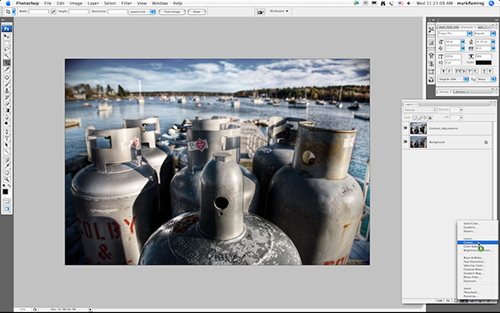
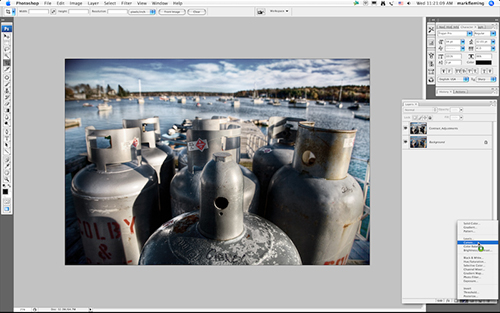
Begin with a processed image that has high contrast. Despite selecting a high contrast image, add even more contrast by selecting a curves adjustment layer from your layers palette.

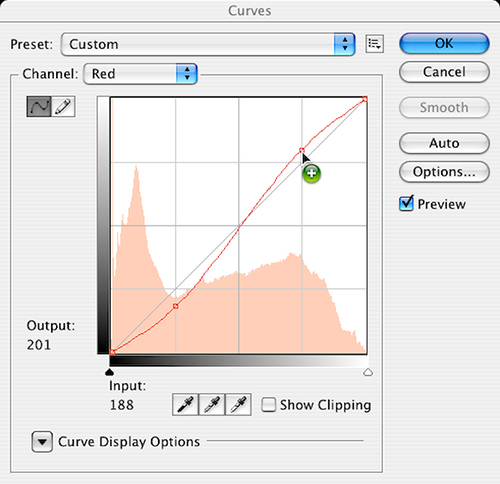
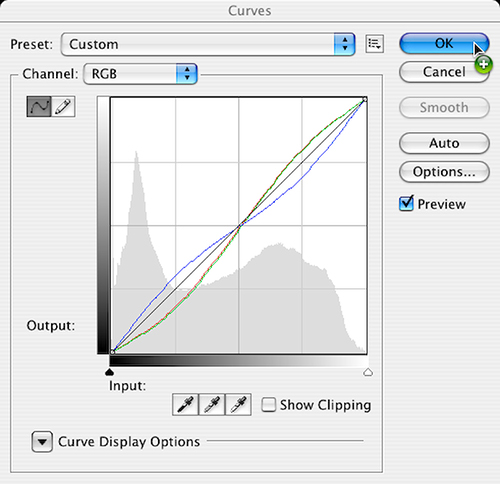
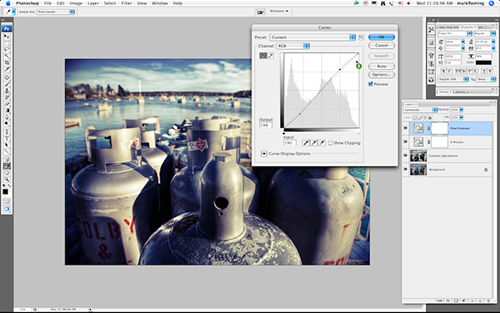
Repeat this process by adding yet another curves adjustment layer, this layer will be used to create the cross processed look. Inside that curves adjustment layer you will select each channel individually from the drop down menu, begin with the Red Channel.

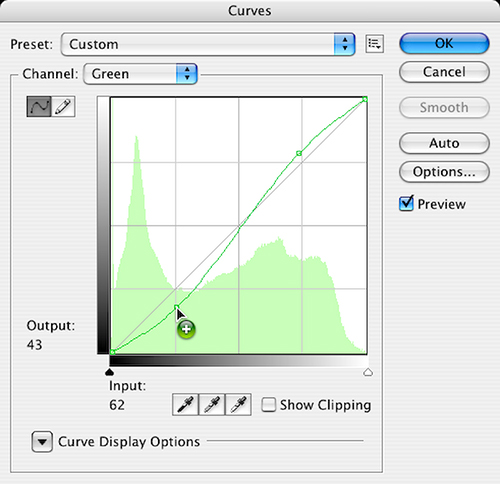
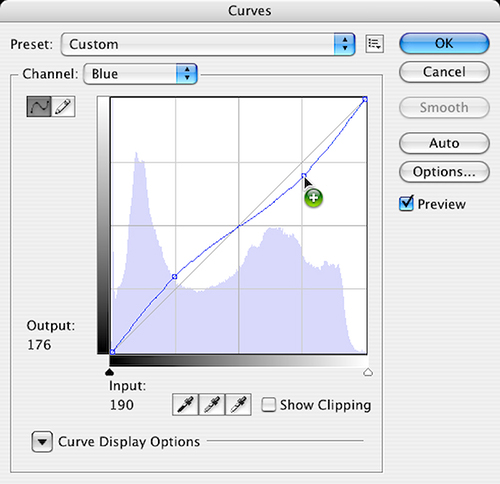
The basic rule of thumb is to raise the red and green in the highlights, and to drop the red and green in the shadows. The reverse is true in the blue channel.

Drop the blue in the highlights and raise the blue in the shadows.

Note as you work through the previous steps that much of the adjusting is based on your own personal preference. Each of your adjustments is up to you and should match your vision of how the image should look.

At the conclusion of these steps, the result will resemble a twisted helix

Once you have completed your desired adjustments to each channel, click ok to immediately change the blending mode to color.

As a final touch, you may choose to add even a bit more contrast. It is surprising just how much contrast a cross processing layer will pull out of your image.

You have now created a fine cross processed digital image.

Visitor Comments »


Thanks for this tutorial. This has given me a way to give some of my photos a unique look.


Comment by Deke | March 12, 2008 @ 10:03 am


I am using PS 7. Where can I find curves adjustment layer from the layers palette?
I would like to create a fine cross processed digital image.


Comment by ev | March 12, 2008 @ 6:11 pm


looks cool, and you’ve helped me to make sense of the “curves” tool,
cheers.


Comment by dave | March 13, 2008 @ 3:00 am


Great tutorial, for someone who is new to ‘curves’ it is easy to follow. Cross-processing is so cool!


Comment by Anthea | March 13, 2008 @ 3:24 am


Nice image! Christmas Cove? Boothbay?


Comment by benshead | March 13, 2008 @ 11:36 am


deseo que si es posible, se me comuniquen todos los correos y noticias, en castellano, de lo contrario no me entero de nada, gracias


Comment by jose maria | March 13, 2008 @ 1:14 pm


Nice tutorial!
if you like this tut, you might be interested in this one as well: http://veerle.duoh.com/blog/comments/photoshop_vintage_effect/

ciao
koka


Comment by Koka | March 14, 2008 @ 9:17 am


Neat. It would be cool to show the before/after next to each other (or use a javascript rollover to switch them out).


Comment by Tofudisan | March 14, 2008 @ 11:49 am


it’s ok


Comment by parth | March 18, 2008 @ 11:23 am


Awesome! I just tried it on some video footage and it looks great!


Comment by zelophoto.com | March 18, 2008 @ 12:41 pm


ooooooooohhhh, I just tried it on some Super8 movie film footage I shot in NYC this past October and it looks super cool. Thanks again and again!


Comment by zelophoto.com | March 18, 2008 @ 12:56 pm


Once you find a few of these settings that you like you can save them as presets.


Comment by unfocusedbrain.com | March 21, 2008 @ 4:14 pm


Wicked cool.


Comment by Alan Hogan | March 27, 2008 @ 1:15 pm


hi, buddy
you did wery good work, and give us more
such a work to improve our photography. thanks


Comment by dipen | March 29, 2008 @ 2:27 am


i got it to work. But why and what do you do to the first adjustment layer? Also dafter clicking OK to second adjustment layer did you then go to layers palette and adjust the blend mode from normal to colour?


Comment by Anthony Bianco | April 2, 2008 @ 1:36 pm


Hi! I like this tutorial and the effect too :) Could You tell the input and output values for the curve You used? or export the curve and share it with us as a basic starting point :)

Thanks in advance and have fun!


Comment by Adam | April 21, 2008 @ 6:25 am


@ev I don’t think PS 7 has curves as adjustment layers (but it will have curves, you just need to work on a copy of your image since it’s non-reversible). Look up ‘curves’ in PS Help (press F1) to find out where they are hiding in PS 7.


Comment by jhm | April 24, 2008 @ 2:13 pm


Hi there,
i am using adobe photoshop CS3 my problem is that, the images i was trying add up on my work space didn’t appear. How am i goin’ to solve this problem?
Thank you for the response!^^


Comment by cheryl | May 7, 2008 @ 1:11 am


I tried this out and loved it! Aaack where have you been all my life? :) )


Comment by jd | May 10, 2008 @ 5:41 am


I LOVE IT. thank you so much.
so simple but the outcome is pretty awesome!


Comment by k | May 28, 2008 @ 9:19 am


i don’t like to use curves..at all. is there any other good method to achive the cross pro?


Comment by iren s. | June 1, 2008 @ 3:15 pm


Awesome tut, simple but effective


Comment by Michael (iltp.dk) | June 5, 2008 @ 5:04 am


Cool tips. Simple not special at the fisrt glance, but still usefull


Comment by Gusto | August 20, 2008 @ 2:05 am


cool!
very!


Comment by jef | September 7, 2008 @ 10:52 pm


[...] Curvy Cross Processing in Photoshop CS3 [...]
 

Pingback by 15june.com » Archive » Cross Processing Effect | September 23, 2008 @ 12:38 pm


how cool! thank you so much for putting this on the web for free. i love the cross process style, but it is very expensive. you have no idea how much i appreciate this. thank you thank you thank you


Comment by megan | November 14, 2008 @ 2:23 pm


[...] when it comes to landscapes and skies. It’s great to use the RGB curves separately to fake a cross processed look or pull some red out of the mid-tones easily. It looks like a round trip to Photoshop is needed for [...]


Pingback by greyscalegorilla/blog » Lightroom Vs Aperture | November 17, 2008 @ 10:20 pm


Thanks so much for sharing your Photoshop skills with the photography world. It is definitely helping me further my education!


Comment by Caitlin B. | December 21, 2008 @ 3:44 pm


[...] Adobe Photoshop Tutorial | Digital Photography | Cross Processing | Create High-Contrast Photos | La… – [...]


Pingback by Bookmarks for Enero 1st from 08:34 to 13:05 | FACIL TUTORIALES | January 1, 2009 @ 7:16 am


[...] Adobe Photoshop Tutorial | Digital Photography | Cross Processing | Create High-Contrast Photos | La… – [...]


Pingback by Bookmarks for Enero 2nd from 15:22 to 15:55 | FACIL TUTORIALES | January 2, 2009 @ 10:07 am


[...] Adobe Photoshop Tutorial | Digital Photography | Cross Processing | Create High-Contrast Photos | La… – [...]


Pingback by Bookmarks for Enero 4th from 19:04 to 20:01 | FACIL TUTORIALES | January 4, 2009 @ 2:09 pm


[...] Adobe Photoshop Tutorial | Digital Photography | Cross Processing | Create High-Contrast Photos | La… – [...]


Pingback by Bookmarks for Enero 4th from 20:07 to 20:59 | FACIL TUTORIALES | January 4, 2009 @ 3:08 pm


[...] Processed’. In the old days, you would do this by processing film in the ‘wrong’ chemicals. HERE is one tutorial, there are probably thousands of them out there. __________________ Edmonton [...]


Pingback by Question about colour style - The Photo Forum - Photography Discussion Forum | January 15, 2009 @ 11:31 am


Thanks for this!!! It’s simple and awesome, and the tutorial It’s very simple too.

Thank you!


Comment by Ale | April 5, 2009 @ 3:01 pm


[...] Curvy Cross Processing in Photoshop CS3 [...]


Pingback by 13 Useful Techniques for Enhancing Web Design Photography | Web Design Ledger | June 22, 2009 @ 1:56 am


[...] Curvy Cross Processing in Photoshop CS3 [...]


Pingback by 13 Techniques for Web Design Photography | Blog YODspica Ltd | June 22, 2009 @ 7:20 am


Thank you for this post, I have been wondering for sometime how to tweak it that way. This is cool!


Comment by Evelyn T | July 28, 2009 @ 10:18 pm


[...] that I search on google, got this website, so follow is and get the photo [...]


Pingback by | 明 • 摄 | July 30, 2009 @ 10:43 am


[...] Curvy Cross Processing via Layers Magazine [...]


Pingback by 40 Incredibly Inspirational Retro & Vintage Photoshop Tutorials | Photoshop Tutorials | August 17, 2009 @ 7:15 am


[...] Curvy Cross Processing via Layers Magazine [...]


Pingback by 40 Incredibly Inspirational Retro & Vintage Photoshop Tutorials « JinSpiration | August 17, 2009 @ 12:11 pm


[...] Curvy Cross Processing [...]


Pingback by 40 Incredibly Inspirational Retro & Vintage Photoshop Tutorials | Overflowed Media | August 17, 2009 @ 12:28 pm


[...] Curvy Cross Processing via Layers Magazine [...]


Pingback by 40 Incredibly Inspirational Retro & Vintage Photoshop Tutorials - Programming Blog | August 17, 2009 @ 8:43 pm


[...] Curvy Cross Processing via Layers Magazine [...]


Pingback by 40 Incredibly Inspirational Retro & Vintage Photoshop Tutorials | Internet Marketing Tips and Strategy To Make Money Online | August 17, 2009 @ 11:23 pm


[...] Curvy Cross Processing via Layers Magazine [...]


Pingback by 40 Incredibly Inspirational Retro & Vintage Photoshop Tutorials | Fulldigi | August 18, 2009 @ 1:21 am


[...] Curvy Cross Processing via Layers Magazine [...]


Pingback by 40 Incredibly Inspirational Retro & Vintage Photoshop Tutorials | Technology you can trust here... | August 18, 2009 @ 8:45 am


[...] Curvy Cross Processing via Layers Magazine [...]


Pingback by 40 Incredibly Inspirational Retro & Vintage Photoshop Tutorials | Mac Bargains | August 19, 2009 @ 5:34 am


[...] Curvy Cross Processing via Layers Magazine [...]


Pingback by 40 Incredibly Inspirational Retro & Vintage Photoshop Tutorials | huibit05.com | August 20, 2009 @ 9:26 am


[...] Curvy Cross Processing via Layers Magazine [...]


Pingback by 40 Incredibly Inspirational Retro & Vintage Photoshop Tutorials « Photoshop.vn – Your Design Resource | August 25, 2009 @ 2:37 pm


[...] Curvy Cross Processing via Layers Magazine [...]


Pingback by 40 Incredibly Inspirational Retro & Vintage Photoshop Tutorials « Resources For Designers | August 27, 2009 @ 11:36 pm


[...] Curvy Cross Processing via Layers Magazine [...]


Pingback by 40 Incredibly Inspirational Retro & Vintage Photoshop Tutorials | MEN blog . net | September 9, 2009 @ 10:44 am


Thank you so much here’s my first try with your advices :

http://www.flickr.com/photos/acbeaumont/3906742630/


Comment by Allen | September 10, 2009 @ 8:25 am


[...] Curvy Cross Processing via Layers Magazine [...]


Pingback by 40 Incredibly Inspirational Retro & Vintage Photoshop Tutorials | My Tech way | September 14, 2009 @ 7:31 am


[...] Curvy Cross Processing via Layers Magazine [...]


Pingback by Digitalize Blog » Blog Archive » 40 Incredibly Inspirational Retro & Vintage Photoshop Tutorials | October 7, 2009 @ 2:58 pm


[...] Curvy Cross Processing via Layers Magazine [...]


Pingback by 40 Incredibly Inspirational Retro & Vintage Photoshop Tutorials | Programming Blog | October 7, 2009 @ 3:45 pm


[...] Curvy Cross Processing [...]


Pingback by Descargas Premium - 40 Retro & Vintage Photoshop Tutoriales | October 8, 2009 @ 6:07 am

Leave us a comment

Comments RSS | TrackBack URI

Back to Top


Advertisement
Creative Suite Tutorials
  1. Photoshop Photoshop
  2. Illustrator Illustrator
  3. Indesign Indesign
  4. Dreamweaver Dreamweaver
  5. Fireworks Fireworks
  6. Premiere Premiere
  7. Flash Flash
  8. After Effects After Effects
  9. Lightroom Lightroom
  10. Acrobat Acrobat

Get the latest tips, tricks and news delivered straight to your inbox.

From our Partners
Subscribe to Layers Magazine


  • Back to the Layers Magazine Homepage
  • Creative Suite Tutorials
  • Layers Magazine
  • Reviews on top products
  • Layers Magazine Reader Forums
  • Subscribe to Layers Magazine