
Design with Flair from Start to Finish in Illustrator CS4

Faking the Dot Pattern Vector Pack If You Don’t Have Illustrator CS4

The Dot Pattern Vector Pack is only available in Illustrator CS4. If you’re working with CS3, here’s a workaround to create your own dot pattern. (this will replace Steps 5 and 6 in the Design With Flair tutorial.)

1 CREATE NEW DOCUMENT IN PHOTOSHOP
Create a new document (File>New) in Photoshop that’s 8×8 inches at 100ppi.

2 SET DEFAULT COLORS; RENDER CLOUDS
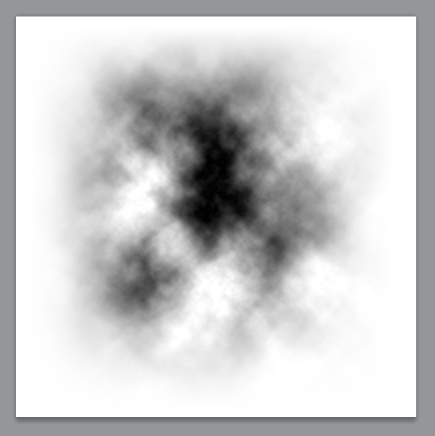
Press D to set your Foreground color to black and your Background color to white. Then, go to Render under the Filter menu and select Clouds.

3 DRAW GRADIENTS ON ALL FOUR SIDES
Press the letter G to switch to the Gradient tool. Press X to switch your Foreground color to white. Open the Gradient Picker in the Options Bar and select the Foreground to Transparent gradient. Drag with the Gradient tool from the outer edge of the document toward the center on all for sides so the edges fade out to white.
Illustrator Tutorial

4 RUN COLOR HALFTONE FILTER
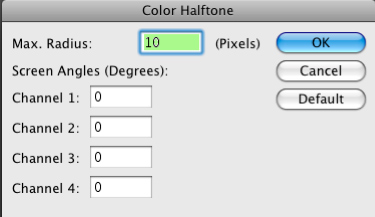
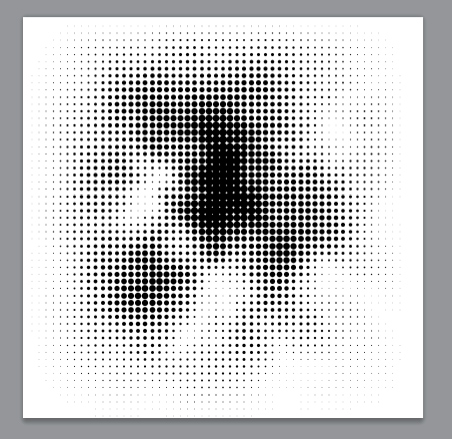
Go under the Filter menu again but this time go to Pixelate and choose Color Halftone.
Use the settings shown in the image here.
Illustrator Tutorial

5 SAVE AND PLACE IN ILLUSTRATOR
Save this document. Place (File>Place) the image in Illustrator and click the Live Trace button in the Control panel. Click the Expand button to convert the Live Trace object into a standard object. Use the Direct Selection tool (A) to select a white area, then go to Select>Same>Fill Color. Press Delete (PC: Backspace) to delete all the white areas.
Illustrator Tutorial

6 CHANGE COLOR; SEND TO BACK
Now, select the dot pattern, open the Swatches panel (Window>Swatches), and click on a light-gray box to apply that color to the graphic. Using the Selection tool (V), place this graphic over the traced graphic and scale it as needed. Then go under the Object menu and choose Arrange>Send to Back. (Note: If you can’t see the dots behind your object frame, make sure your Fill is set to None in the Control panel.)

Continue with Step 7 of the “Design With Flair” tutorial.

Pages: 1 2

Visitor Comments »


I think you might mean “flair” here…


Comment by G Snyder | June 4, 2009 @ 4:52 pm


Hi G,

You’re right, we did mean “flair.” We’ve already made the change.

Thanks!
Chris Main
Managing Editor
Layers Magazine


Comment by Chris Main | June 4, 2009 @ 5:17 pm


Nicely done. Thanks for posting!


Comment by bebopdesigner | June 4, 2009 @ 6:13 pm


I was not able to locate the same photo at Fotolia; I took another one but the result is not convincing. The same apply for many tutotials.


Comment by Mazerolle | June 5, 2009 @ 2:30 am


[...] Click here to see the rest of the tutorial [...]


Pingback by FJ Westcott announces Top Endorsed Pros | Layers Magazine | June 5, 2009 @ 11:08 am


Very very good.


Comment by Gary | June 6, 2009 @ 1:51 pm


Nice work, thanks a lot :)


Comment by matt | June 8, 2009 @ 5:17 am


great tutorial. thanks, this helped me tap into the abstract side of illustrator!


Comment by Josh | June 8, 2009 @ 1:32 pm


thanks for sharing!


Comment by susan | June 13, 2009 @ 10:59 am


very simple and nice!! Thanks


Comment by jean | June 14, 2009 @ 10:15 pm


That was really great, although my brother and i were both looking at it, and he is not so into the excessive grunge look.


Comment by Chavar | June 16, 2009 @ 5:40 pm


[...] Corey Barker shows how to get some slick results using Illustrator’s Live Trace, symbols, and brushes. [...]


Pingback by Monday Illustrations: All tutes, all the time | Photoshop Life | June 22, 2009 @ 2:13 pm


[...] to get a jump on this should check this out (via John Nack who also point to a few other links the Illustrator crowd might [...]


Pingback by Look Yourself in the Eye - The Mac Lab | June 23, 2009 @ 7:43 pm


How can i get these vector packs?


Comment by Faisal | June 25, 2009 @ 7:11 am


Thx Cool work! it will work for me as well!


Comment by Munaf Patel | June 26, 2009 @ 8:20 pm


Awesome tutorial! I am using CS3, and the vector packs are not available in my symbol library – where can I find something similar?


Comment by Rachel | June 27, 2009 @ 6:55 pm


The tutorial is verry good (read awesome [for those sho couldn't get it, sorry but you need to be creative and play with different numbers, don't get stick by the book]).

Dear Layers Magazine (all of you the good guys), thanks for all your effort, and good work.


Comment by macs55 | June 27, 2009 @ 7:58 pm


Nice work


Comment by designer uae | June 29, 2009 @ 9:11 am


it’s very clear and step by step details, that what i need. thanks and wish having more illustrator demos more often.


Comment by Jennifer Chang | June 29, 2009 @ 6:31 pm


cool


Comment by dansoadesigns | June 30, 2009 @ 6:26 pm


I’m kind of with the folks who can’t access the vector packs; if you’re going to demonstrate something that only works in a particular version of the software (i.e. CS4), you should say so up front. Other than that, I was WAY cool with it.


Comment by JustJenna | July 2, 2009 @ 5:26 am


[...] Design with Flair from Start to Finish in Illustrator CS4 – by Corey Barker of Layers [...]


Pingback by Some of the Best and Easy to Follow Adobe Illustrator Vector Tutorials - Graphic Design Free Resources | July 3, 2009 @ 1:31 am


So thats how you do it.


Comment by Raven Sloe | July 6, 2009 @ 10:12 pm


Hey Everyone,

We’ve added a mini-tutorial showing how to fake the Dot Pattern Vector Pack 01 symbol if you don’t have Illustrator CS4.

http://www.layersmagazine.com/design-with-flare-from-start-to-finish-in-illustrator-cs4.html/2

Thanks,
Chris Main
Managing Editor
Layers Magazine


Comment by Chris Main | July 8, 2009 @ 3:46 pm


Thanks, this really helped. I don’t know how to save my vector so I can upload it to Myspace though.


Comment by Chrishonda | July 21, 2009 @ 10:37 am


[...] Design with Flair from Start to Finish in Illustrator CS4 [...]


Pingback by Way Cool Adobe Illustrator Tutorials | Flash, Design, Vector, Photoshop, Adobe Tutorials | GraphicMania.net | August 30, 2009 @ 11:57 am


[...] Design with Flair from Start to Finish in Illustrator CS4 Creating a Cut-out style Illustration from a Photo Template Draw a Balloon in Illustrator Tutorial Drawing Birds in Illustrator Tutorial Vector Build Methods 1 Drawing a character’s face in Illustrator Flash Game Illustration Illustrator Vector Line Art of Cruise Ship Gears and Splined Shafts in Adobe Illustrator Image Inlay Text Illustrator Tutorial Stylized Portrait Illustration Create A Vector Art Twitter Bird Character Icon In Adobe Illustrator Drawing a Vase in Illustrator Tutorial Comic Book Style Graphic Design Creating a crazy cool logo   [...]


Pingback by 超カッコいいIllustratorのチュートリアル | yuxu's notebook | August 30, 2009 @ 3:43 pm


Thank you, that was very helpful. Not only a great tutorial from a learning the basics point of view, but actually a pretty sweet effect too.


Comment by Benn | August 31, 2009 @ 1:14 am

Leave us a comment

Comments RSS | TrackBack URI

Back to Top


Advertisement
Creative Suite Tutorials
  1. Photoshop Photoshop
  2. Illustrator Illustrator
  3. Indesign Indesign
  4. Dreamweaver Dreamweaver
  5. Fireworks Fireworks
  6. Premiere Premiere
  7. Flash Flash
  8. After Effects After Effects
  9. Lightroom Lightroom
  10. Acrobat Acrobat

Get the latest tips, tricks and news delivered straight to your inbox.

From our Partners
Subscribe to Layers Magazine


  • Back to the Layers Magazine Homepage
  • Creative Suite Tutorials
  • Layers Magazine
  • Reviews on top products
  • Layers Magazine Reader Forums
  • Subscribe to Layers Magazine