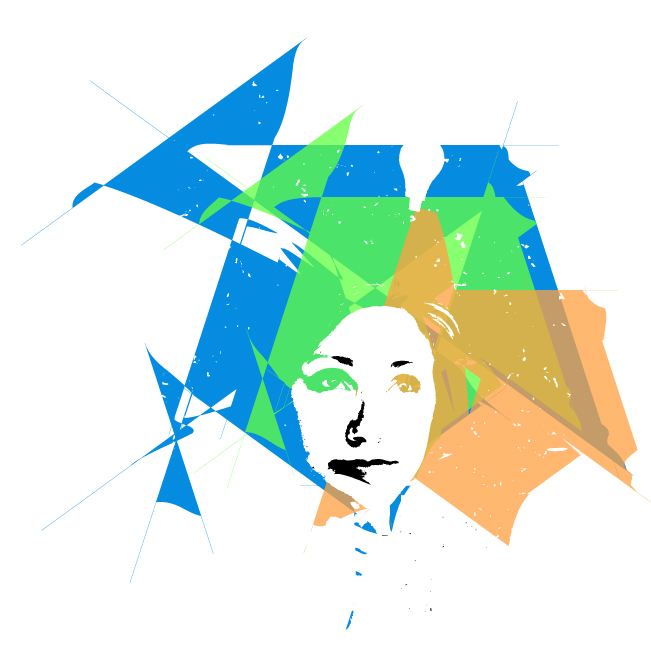
Illustrator: Large Brushes for Abstract Backgrounds
Using custom brushes can be useful for adding unique backgrounds or strokes to a design. But one uncommon way to use them is to make their stroke very large, causing some interesting effects for use as backgrounds or other abstract designs.
1
As an example, let’s click-and-hold onto the Rectangle tool, which will bring out a side menu which includes the Ellipse tool. Select it and draw out a circle. Hold Shift to make a perfect circle.
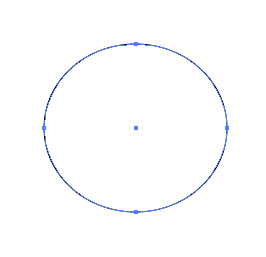
2
On the Control Palette, change the stroke to a different brush.
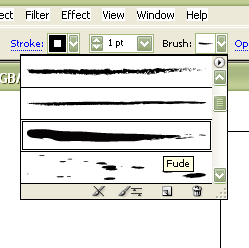
3
Choosing this example brush will change the stroke to something like this.
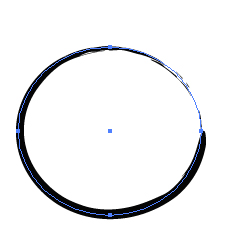
4
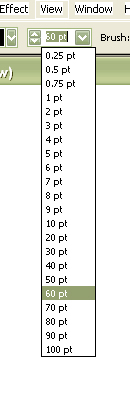
Next, change the size of the brush to a higher number.
5
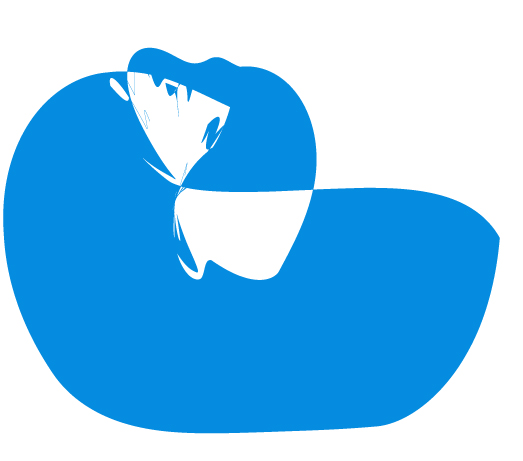
The circle doesn’t look like a circle anymore. This causes this interesting look, but let’s make something a little bit better.
6
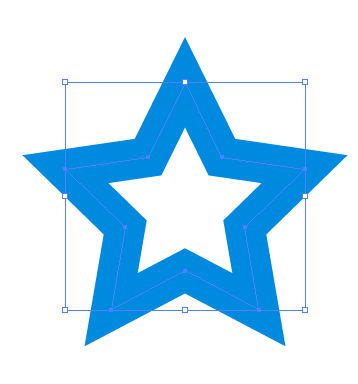
Select the Star tool from the same toolbar area.
7
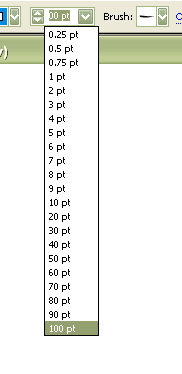
Change the Stroke of the brush to 100 pt and to this brush shown here.
8
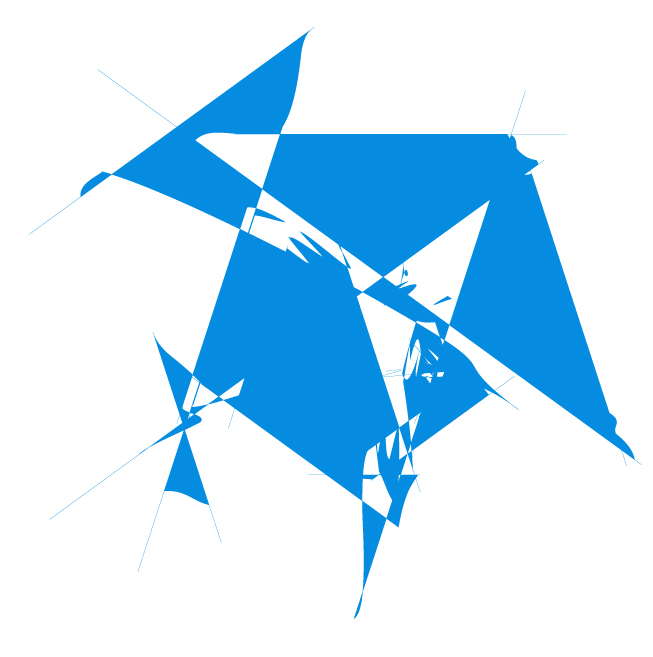
The effect causes it to not look like a star anymore, but this abstract background.
9
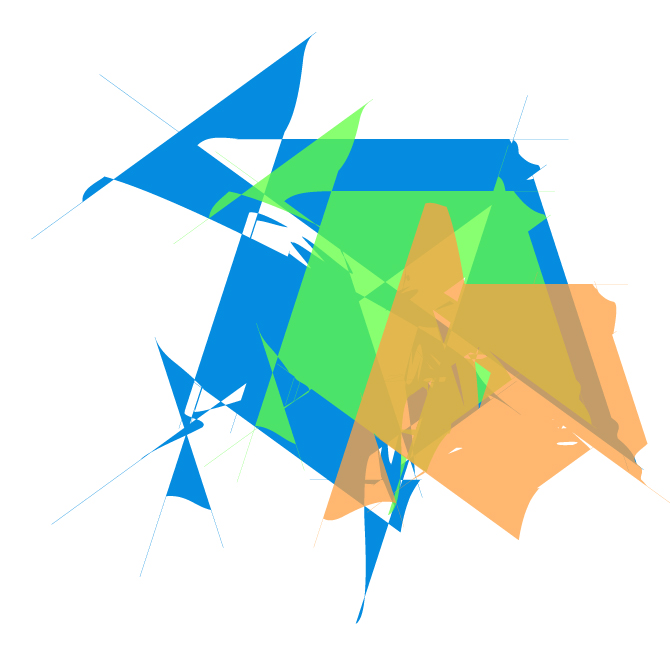
Ctrl-click (PC: Alt-click) and drag the object to a duplicate, and do this twice to make two. Change the color of the Stroke of the designs, and adjust the Opacity in the Transparency palette.
10
Finally, place a raster image (File>Place) and apply a Live Trace (for this one, I used the Type preset).

11
Click Expand, and use the Direct Selection tool to select some parts of it and delete them. Now we have a unique, abstract design which can be used as a background or even a logo.