
Image Slicing in Photoshop CS3
No doubt you’ve heard about image slicing, but do you know what it is and how it works? Image slicing is a technique for creating a web page (or a component of a web page, like a header or navigation menu) visually in Photoshop (Fireworks and Illustrator also allow you to slice images, too). But how does it work?
Well, you’d first design a page in Photohsop exactly as you want it to look when it goes live on the web. Then you cut out all the page components—title bars, buttons, navigation menus, and so on—using Photoshop’s Slice tool. Then, when you save everything out, Photoshop saves each slice as an individual graphic, and (and this is the icing on the cake for the code-leary) all the necessary code will automatically be written as well. Sounds awesome, huh?
Finally, once everything’s saved out, you can pull everything into Dreamweaver and finish off your layouts with any necessary tweaks. It’s a very cool process, and one of the most popular methods for building web pages.
The following sections describe how to take a created layout, slice it up in Photoshop, save it out, and then pull the whole thing into Dreamweaver to finish it off. Ready? Lets get started!
Part 1: Designing Your Page ‘n Slicin’ it Up
So obviously, the first thing you’ll need to do is create a layout in Photoshop. In my example, I’m building an entire page, and because I don’t want any horizontal scrolling in my layout, I build for the most common monitor resolution, 1024×768. There’s quite a bit of debate as to how wide one can design inside a width of 1024 pixels, but I personally go with 990 pixels as my maximum width. This means that starting off in Photoshop, I create a new file with a canvas size of 990 pixels wide. As for the height, that’s usually determined by content, so you might want to give yourself lots of space to work inside.
Now in the case of creating a page object like a menu or header, you’d have to know the dimensions of the object before creating it in Photoshop.
Once your dimensions are set, it’s simply a matter of building your design. Design and lay out all your buttons, background graphics, logos, and so on, building up your page’s design. Use whatever tools, commands, and options you’d like. Often times, I’ll even cook things up in Illustrator, then drop them into my layered Photoshop layout as Smart Objects, just to make the process go faster.
If you’re building a page as I am here, don’t worry about actual page content—the text and other objects that would appear on the individual pages of your site. Imagine instead that you’re building a template. What you’re after is the overall look of all the pages in your site. Later on in Dreamweaver, you can drop in the content. Once your page design is complete, you’re ready to begin slicing it apart.
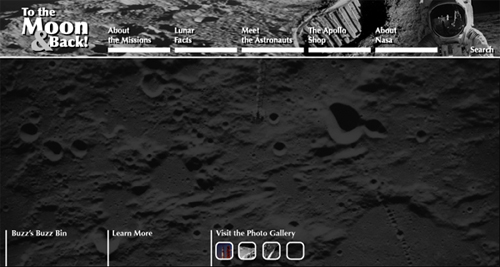
Slicing up your design is the fun part. What you’re doing is taking your overall layout and cutting it into smaller pieces. This means you’ll be isolating buttons, logos, and background areas on your page by slicing them away from the rest of the layout. There are a few different ways to slice apart layouts and page components, but I’ll show you my technique.
Here’s how to get started:
1. From Photoshop’s Toolbox, select the Slice tool.
2. With the Slice tool, click and drag a box all the way around your entire design.
This creates a single, large slice that encompasses your entire layout. I think you’ll find this to be the easiest and most accurate way to slice images.
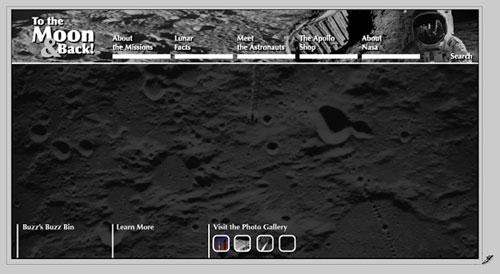
3. Right-click (or Ctrl+click on the Mac) anywhere inside your design, and choose Divide Slice.
4. In the Divide Slice dialog that appears, decide how you’d like to break that single slice that you just drew. Turn on either Divide Horizontally Into or Divide Vertically Into (or both); then enter in the number of slices you’d like to create. Click OK when you’re ready.
This is where the craft of image slicing comes in. Look for natural breaks in your image. Remember, each slice will wind up being saved out as an individual graphic, so you may want to create slices for each button in a menu, for example. In my layout, I’ve divided the image into three slices horizontally: one for the header area, one for the main area, and a third for the lower, footer area.
If Preview is turned on in the Divide Slice dialog, you’ll be able to see where your slice lines will appear in the image. Don’t worry if they’re not exact, we’ll adjust them in the next step.
5. Next, if needed, adjust the slice lines that appear on your image simply by dragging on them. You may want to zoom in for a little more precision.
You’re now ready to continue slicing apart your layout. I find it easiest to work from the general to the specific—in other words, look for main areas to slice away; then start getting more refined as you go. Once you have the general areas of your layout sliced, you’re ready for the more detailed areas.
6. To continue slicing apart your image, single-click inside a “general area” slice; then right-click (or Ctrl+click on the Mac), and choose Divide Slice once again.
Notice that when you single-clicked inside the slice, all the other slices in the image deselected? Now this time, you’ll only be dividing up the currently selected slice.
7. In the Divide Slice dialog, set the number of slices you’d like to create horizontally and vertically, just you did earlier.
As before, look for natural breaks in your layout. Remember, each slice is saved as a separate graphic, so you might want to isolate buttons, logos, and so on. Don’t get frustrated if you have to start over a few times. Image slicing does takes a bit of patience. Knowing where and what to slice is just a matter of practice.
8. Continue slicing apart your layout using the techniques described until you’re happy with how things are looking.
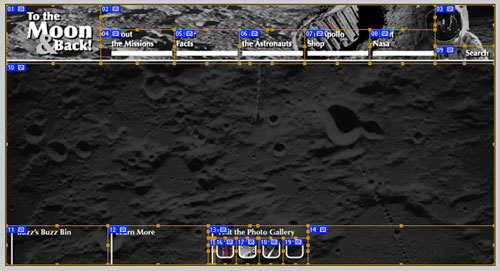
Things lookin’ good? Great, now you’re ready for the fun part!
Part 2: Savin’ Er Out
Once you’ve sliced up your layout, you’re ready to save everything out of Photoshop. And remember, not only will Photoshop save all your sliced images in one shot (meaning that you don’t have to save each of them individually), but it’s also going to build your page’s underlying code structure for you. So when you save your slices, Photoshop will also save an additional HTML file. That’s the file that you’ll want to open in Dreamweaver. Awesome is an understatement here, folks—it doesn’t get much sweeter than this!
Here’s how to save it all out:
1. Choose File > Save For Web & Devices.
2. In the Save For Web & Devices dialog, set optimization settings for your slices.
If you’ve never used this dialog before, I’ll give you a quick run-through on how it works. Holding down Shift, you can select the slices that you’d like to set certain optimization settings for—that is, compression options when you’re saving an image (or in this case, a group of images) for use on the web. Next, on the right side of the panel, you can set your optimization settings.
Depending on the file format that you choose, different options will appear. For example, in the case of JPG, you’ll see options for compression, quality, blur, matte, and a few others. Unfortunately, we don’t have the space to go through all the options, so you may want to read up on a few of these.
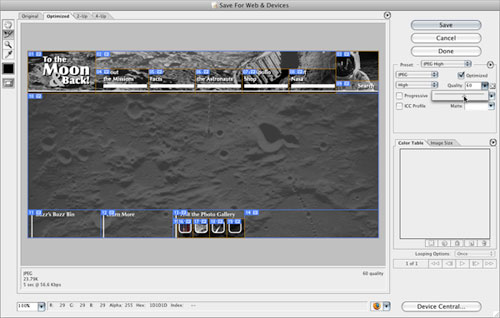
3. Once you’ve optimized your slices, click Save.
4. In the Save Optimized As dialog, name your file in the Save As field; then navigate to the folder where you’d like to save your slices. Don’t click Save just yet.
The location where you save your work will most likely be your site’s local root folder, as you’ve defined it in Dreamweaver (You may need to read up on defining a site in Dreamweaver if you’re not sure what I’m referring to).
5. From the Format menu at the bottom of the dialog, choose HTML And Images.
This ensures that Photoshop will not only save out your slices, but also all the background code needed to render your layout.
If you’d like to explore some of the other options available, choose Other from the Settings menu. You may want to experiment with a few of the commands found here.
6. When you’re ready, click OK.
Photoshop saves out all your slices, and the HTML needed for your layout. Pretty easy stuff. Now lets go take a look at what happened.
7. Minimize Photoshop; then navigate to the folder where you saved your work.
Notice that Photoshop created an HTML file, as well as an images subfolder. Inside the subfolder, you’ll find all the individual slices from your layout.
8. To see your completed layout, open the HTML file in your web browser.
Your layout looks exactly as it did back in Photoshop. Cool!
Part 3: Throwin’ In Some Dreamweaver
Now that everything is saved out of Photoshop, Dreamweaver takes over the formatting duties. In Dreamweaver, try opening the HTML file that Photoshop created, and you’ll see right away that everything’s been created with tables. In Photoshop’s Save Settings (Step 5 in the previous section), you can set whether to use tables or div tags.
Notice too that all the slices sit within the table’s cells. You can drop additional page content on top of your images using a clever technique: Remove the slice from the table cell; then set the cell to the slice’s original dimensions; drop the slice into the cell’s background; and finally insert new text or image content into the cell. This creates the illusion of the content floating above the graphic, as you can see in the screen shot.
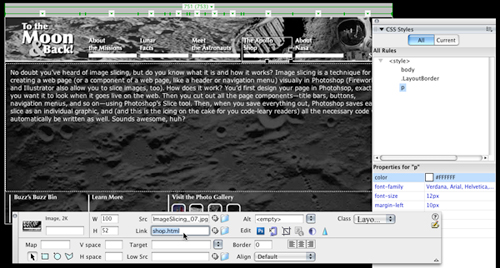
Now you can begin making any adjustments you’d like. For example, you could center the layout, add in a background color, create any necessary CSS rules, begin dropping in your content, and set your hyperlinks.
From here, it’s all tweaking—adjusting CSS styles, text, and other page elements within your design. If you want a graphic to appear behind the text in a table cell (which you can see was done in the sample page design, which uses a crater background behind the text), remove a graphic from its table cell and set it as the cell’s background image, just as you did earlier in this chapter. Then insert your text in the cell as you normally would.
As you work, don’t forget to preview your page to see how your design is looking. And here’s one more trick: With your page working well in Dreamweaver and previewing nicely in those target browsers, use it as the basis for the other pages in your site by resaving it under a different file name for each page. Even better, you can use your page as a Dreamweaver template.
So there it is, a quick guide to getting started with image slicing in Photoshop. Experiment and try out some of the different options, and most importantly, have lots of fun!

Visitor Comments »
Comment by Yefim | June 4, 2008 @ 11:04 am
My only question is still how I can edit the spliced tables through dreamweaver after exporting the psd file to html… Dreamweaver tries to redirect me to an editer and photoshop doesn’t allow it.
Comment by Yefim | June 4, 2008 @ 11:50 am
I liked this feature better in ImageReady (R.I.P.) which was more geared for web imaging. Photoshop is just more cumbersome in doing slices since it’s mostly for editing print images. Now we’re forced to use just Photoshop and Fireworks in CS3. It’s a major disappointment that slices created in Photoshop (or even ImageReady) will simply go away when you open the file in Fireworks and vice versa. These 2 apps should be more integrated and compatible since the average web designer/developer would be using both.
Comment by TenaciousMC | June 4, 2008 @ 1:15 pm
Yef, here is a video tutorial that RC does on dreamweaver and photoshop integration. It might help you but I am not for sure.
http://www.layersmagazine.com/dreamweaver-and-photoshop-integration.html
Comment by Mitzs | June 7, 2008 @ 2:15 am
Amazing. Thanks!
Comment by Leanne | June 10, 2008 @ 1:11 pm
Thank you very much. I have long wanted to know how to do this in Photoshop CS3 (sans ImageReady).
A very clear and helpful tutorial.
Comment by Alan | June 13, 2008 @ 9:15 pm
Very helpful, clear instructions – thanks a bunch!
Comment by Mari | June 14, 2008 @ 3:27 pm
Thank you very much for this post! Excellent information and just what I was searching for! You rock!
Comment by Monica | June 25, 2008 @ 11:27 pm
Tables? No thanks. HTML/XHTML and CSS only, thank you.
Comment by Mtheoryx | June 26, 2008 @ 7:44 pm
Thanks for a nice tutorial. I will share this with my Pro Web Dev class. To the nice Mtheoryx comment on tables, they are necessary for advanced database applications, and this tutorial allows for this. Nice work.
Comment by James Leahy - OverTheWeb.org | June 30, 2008 @ 10:38 am
I have several books and NONE of them covers ANYTHING about using the slice tool. Thanks for bringing another tool out of the mystery box for me.
Comment by Jerry Vaughn | July 14, 2008 @ 4:18 pm
Great tutorial. Most end with the save command, but you continued on with the Dreamweaver segment, thereby making the tutorial complete!
Comment by Sharon Gano | July 26, 2008 @ 12:06 pm
THANK YOU! This is great.
Comment by bc in dc | July 31, 2008 @ 12:04 pm
Thank for that mate…learnt alot in a short time!!
Comment by Chris | August 11, 2008 @ 7:43 am
thanx you just kicked off the beginning of something magnificent!…my new website
Comment by Gabby | August 12, 2008 @ 2:45 pm
Wonderful tutorial! You’ve answered a lot of questions in a short time. Thanks a lot!
Comment by Anne | August 16, 2008 @ 2:08 pm
This method creates spacer.gif images in HTML Coding.Can some one throw light on how to avoide it?
Comment by Samir | August 23, 2008 @ 4:21 am
Excellent tutorial! The best one I have seen. I wish you would have provided a link for the picture you sliced to practice with though. But thanks for a job well done!
Comment by Greg | September 4, 2008 @ 11:30 pm
Its gr8 !boss, for new designer .
normally Sr dont tell this ideas to Jr.
Thanks again,
Comment by umesh y k | September 24, 2008 @ 2:10 am
Wicked ya! Danke! Easy as pie mate! At least now it is!
Comment by Weeeee! | October 5, 2008 @ 2:39 pm
I need more instruction on how to remove a slice from the table cell, and then drop the slice into the cell’s background (creating the text over image effect).
Bit lost on how to do this.
Aaron
Comment by Aaron | October 20, 2008 @ 8:49 pm
This is really good thanks mate. Similar to the tutvid video that is ubiquitous but still got a lot of stuff there the vid doesn’t cover. Very handy advice on the using divide slices option.
Comment by EV | October 21, 2008 @ 4:43 am
cheers feller, just took me 10 minutes 2 put up my sight
Thanks loads
![]()
Comment by James McGregor | October 29, 2008 @ 9:08 pm
It is very useful and helpful for people who don’t know how to use the slice tool. This is a clear instruction. Thanks a lot for teaching.
Comment by Hewitt Lee | November 13, 2008 @ 8:42 am
Great tutorial! Was just wondering if instead of using tables, on the html side, I would like to know if there a step to say I want to use CSS? Any suggestions on where to look?
Comment by Karla | November 14, 2008 @ 4:20 pm
Thank you, this is a nice tutorial. Unfortunately I have a problem: My CS3 just saves the images into the /images folder, but doesn’t create the html file. I did exactely as you wrote and I also look through all options but it doesn’t work.
Any idea why?
Comment by Daniel | November 15, 2008 @ 9:34 am
Alright I got my fault now… sorry for spamming it was just a mistake of mine! Thanks again!
Comment by Daniel | November 15, 2008 @ 9:38 am
nice tut.. BUT don’t use tables… which is not the WAY CSS is meant…
Comment by evolutional | November 25, 2008 @ 4:42 am
A web design tutorial in 2008 that recommends the use of tables?
Nice tutorial, however readers should realize that table-less web design with XHTML/CSS is the standard compliant way of designing websites today.
Comment by Taulant | December 10, 2008 @ 4:10 pm
Its the gr8
Reg,
SunC India
suncindia.in
Comment by Sunilkumar Shinde | December 23, 2008 @ 6:10 am
This was totaly Rad… Like i really cant belive dis ish worked
Comment by killa grfx | December 24, 2008 @ 11:03 am
Thanks a lot to Geoff Blake for the Tutorial, It helpped me much on my understanding about using both phosohop and dreamweaver. Keep helping! And above of all may the Almighty God be praised and exalted.
Comment by Mbuku Ditutala | January 2, 2009 @ 12:06 pm
hi, can I ask something?
I wanted the slicing images
become JPEG
but it always become GIF
GIF’s quality on image is not reall good T__T
if any1 know how to save the slicing images into JPEG pls e-mail me at meguchi_loves@yahoo.co.jpthx in advance
Meguchi
Comment by Meguchi | January 30, 2009 @ 1:37 pm
[...] http://www.layersmagazine.com/ [...]
Pingback by Templated-(Slicing in Photoshop then put to Dreamweaver) :Garuna Web Designer | February 2, 2009 @ 9:01 am
This page gave me more help than anything else I found…. you rock steady… thanks…
some dude
Comment by some dude | February 2, 2009 @ 10:08 pm
I need more instruction on how to remove a slice from the table cell, and then drop the slice into the cell’s background (creating the text over image effect).
Jim
Comment by Jim | February 8, 2009 @ 1:30 am
[...] a quick tut I looked up for you. Slicing Tut __________________ Signatures they’re a privilege not a [...]
Pingback by making Div's On a Image i have as a Layout? - DesignersTalk | February 10, 2009 @ 1:01 pm
[...] a quick tut I looked up for you. Slicing Tut __________________ Signatures they’re a privilege not a [...]
Pingback by making Div's On a Image i have as a Layout? - DesignersTalk | February 10, 2009 @ 1:01 pm
hello
I am not able to save my file for web , its showing some error like cannot export. if I dont slice then everything is proper… suggest me
Comment by renuka | February 19, 2009 @ 5:25 am
[...] Adobe Dreamweaver Tutorial | Image Slice in Photoshop | Design Web Pages in Photoshop | Layers Magaz… Image Slicing in Photoshop CS3 (tags: tutorials tutorial webdesign design photoshop cs3 slicing dreamweaver slices) [...]
Pingback by links for 2009-02-27 « Where Is All This Leading To? | February 27, 2009 @ 7:09 pm
The last time I sliced an image I was able to slice along my guides – which saved me time and heartache – but for the life of me I cannot figure out how I did this… Anyone?
Comment by Chela Noto | March 3, 2009 @ 4:23 pm
Great tutorial: Coud you send instructions on how to do this?
Notice too that all the slices sit within the table’s cells. You can drop additional page content on top of your images using a clever technique: Remove the slice from the table cell; then set the cell to the slice’s original dimensions; drop the slice into the cell’s background; and finally insert new text or image content into the cell. This creates the illusion of the content floating above the graphic, as you can see in the screen shot.
Thanks, Clay
Comment by Clay Rivenbark | March 7, 2009 @ 11:59 pm
To all those who want CSS instead of tables…….you can set PS to export to divs instead of tables in the export options in the ’save to web and devices’ dialog. If I remember correctly it’s a small button on the lower right to select the options. PS will export them as absolutely positioned divs. If you need to add content regularly (i.e. need a vertically expanding div), you can start to convert the absolute positioning to relative positioning and use floats etc. It’s a little more complicated but it works. Read up on your CSS beforehand!
Comment by Mark | March 10, 2009 @ 6:43 pm
Thank you !
Comment by Jimmi Page | March 17, 2009 @ 9:29 pm
wonderful tutorial…clear conception..thank u.
Comment by Amit | March 28, 2009 @ 7:56 am
In PS3, to ban tables and use css, simply do this:
Click Save for web & devices (file menu in PS3), then ctrl-a and choose your jpg/gif/png image settings, and click save, then Settings: other.
A menu will pop up, and allow you to save using CSS as a separate file (cool), and also specify XHMTL, instead of HTML, which I prefer, and gives better code. A lot of other things you can customize as well.
Comment by Brent Hathaway | March 31, 2009 @ 4:43 pm
Thank you!
It is amazingly hard to find any information about doing slicing for Dreamweaver. It would seem to me to be a very popular article???
Great stuff!
Comment by Dustin @ Beating the Grind | April 2, 2009 @ 10:54 am
[...] Image Slicing in Photoshop CS3 [...]
Pingback by 20 Great Beginner Tutorials from Layers Magazine Free Photoshop Tutorials | Forging Fire Studio | April 16, 2009 @ 9:40 am
could you do a video tutorial for the slicing part and cutting up the weblayout?
the building in DW with tables is bad practice though. “we” should really quit using tables for layouts.
Comment by shann | April 22, 2009 @ 5:59 pm
Awesome tutorial! Thanks!
Comment by Shauna | May 20, 2009 @ 8:10 am
please slice dilog box
Comment by narendra baloliya | June 4, 2009 @ 12:19 am
@shaan
There’s a couple of posts above yours that detail how to export as CSS (DIVs, not Tables); so its all good. But it is bad that tables are default, as is HTML.
Should be CSS/DIVs and XHTML as default.
I use slicing at work to export web graphics, but rarely the markup, however I’m gonna be going through it with one of our PHP coders soon to see if/how we can build it into our workflow. Because although it can’t replace proper markup, it can definately help!
Comment by Nathan | June 4, 2009 @ 6:48 am
Nice Tutorial Sir
Comment by vajahat ali | June 9, 2009 @ 3:21 am
Excellent tutorial. Thanks.
Comment by DD | June 11, 2009 @ 7:29 pm
question: Is there a way to slice images that aren’t in straight lines? I have an image I would like to slice, but the lines of the image aren’t straight. The areas I would like to slice are curvy.
thanks!
Comment by george | July 2, 2009 @ 11:32 am
[...] Once you have a design for your Web site, Photoshop has a slicing tool you can use to prepare your design for the Web. Slicing is simply dividing up your large image into a set of smaller images and saving them separately so you can make different parts of the image clickable. Learn more about slicing with this tutorial. [...]
Pingback by Web Resources - Design Your Web Site in Photoshop | July 7, 2009 @ 11:13 am
its is good but please more extra fetures
Comment by john | July 28, 2009 @ 8:21 am
Help! Anybody got Photoshop CS4 and know where the setting is to exporting slices as CSS?
I have searched everywhere in the settings, & can only find the option to export for XHTML but it still does it as tables. I only know CSS coding and have no idea about tables.
Comment by Una | September 2, 2009 @ 7:22 am
Ah its ok I found it. You have to hit NEXT after selecting XHTML and then it brings up another menu to select output as CSS then further to select as ID, Inline or Class. Very clever. Havent tried it yet but I am sure its going the right way to be coding in CSS and not going back to tables! Cant believe CS4 has set its default to HTML and tables.
Comment by Una | September 2, 2009 @ 7:39 am
PLEASE please someone help me.
I have sliced my image in photoshop and imported it in Dreamweaver…..my problem is…i can not centre it! Using CS4 and there is no align centre in the properties window. Please someone, help!THanks Anna
Comment by Anna | September 2, 2009 @ 1:40 pm
Tables still exist in Dreamweaver because people use them. Basic web designers like them instead of having to re-educate themselves into CSS/Divs… Tables have their place and tuts like these are a godsend for those of us who like to keep doing what’s familiar. Not every designer is a coder/programmer…some people just want to get their PSD file up and running. Thanx for the tut
Comment by Jani | September 10, 2009 @ 3:43 am
You’re the best! Thanks for the demystification!
Comment by Monte | September 14, 2009 @ 8:56 pm
I keep seeing gaps between my slices when previewing. Do you know could be causing this?
Comment by Roland | September 28, 2009 @ 6:56 pm
i have non square buttons. they are skewed and if i slice them they overlap.
how can i avoide this?
Comment by talli | October 8, 2009 @ 9:12 am
Leave us a comment

- Dragging an Object Between Documents
- TV Scanline Effect
- Trick to the Glossy Effect
- 3D Text
- Changing Type on a Path


Photoshop
Illustrator
Indesign
Dreamweaver
Fireworks
Premiere
Flash
After Effects
Lightroom
Acrobat


