Spry Navigation in Dreamweaver CS3
One of the most dramatic enhancements to Adobe Dreamweaver CS3 is the Spry framework, a new set of tools that you can use to create drop-down menus, collapsible panels, and other advanced features. There are so many Spry features, Adobe added a new Insert Bar to the top of the work area to provide easy access to all of the Spry options.
The following tutorial shows you how to create a horizontal drop-down menu bar for site navigation. (You can also use these steps to create a vertical menu bar by selecting Vertical instead of Horizontal in Step 5.)
[Download a preview of this project, here. All files are for personal use only.]
STEP 1 Plan Your Navigation Needs
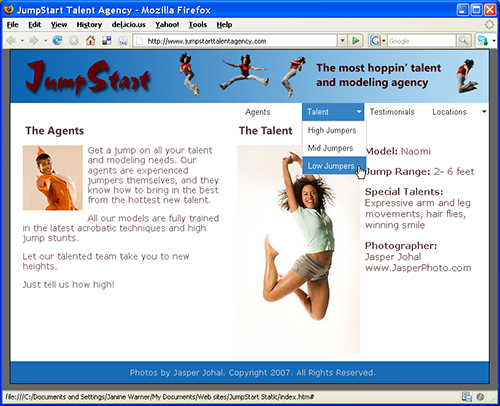
Even before you start creating a navigation menu like the one shown here, take some time to plan how best to organize the site’s links and structure. As a general rule, it’s good practice to limit the number of links in a navigation bar to no more than six or seven. As a result, many Web designers divide a site into a few main categories and then further divide those into subcategories. For example, this site has a section called “Talent” as a main category, and then has subcategories for talent with different jumping skills.
CREDIT: JASPER JOHAL
STEP 2 Set Up Your Site
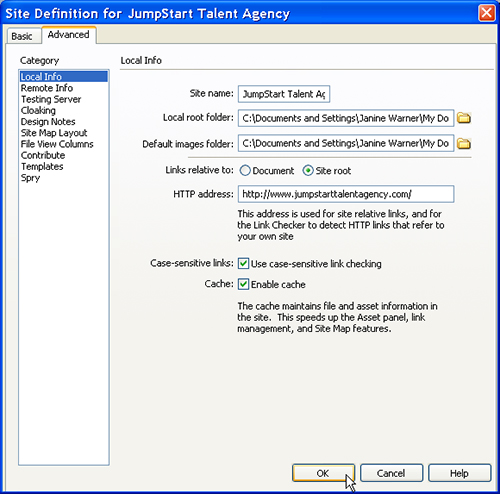
You can add a Spry menu to a new or existing page, but like most of the features in Dreamweaver, things work better if you first define your website. If you’ve already gone through the site setup process, you’re ready for the next step. If you’re creating a new site, choose Site>New Site, select the Advanced tab, and fill in the fields in the Local Info category. For more detailed instructions, read the online tutorial “Defining a Site in Dreamweaver” at www.layersmagazine.com/defining-site-dreamweaver.html.
STEP 3 Create New Page/Open Existing One
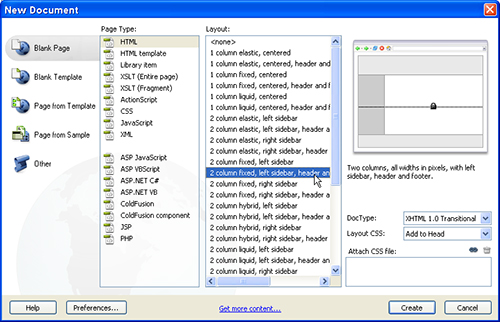
To create a new page, choose File>New and then select a file type. In the New Document dialog, you can choose from a variety of file types, including ASP, PHP, and CFM; however, if you’re creating a new page for a basic, static website, choose Blank Page, HTML, and a CSS Layout (or choose None to create a completely blank page). If you choose one of the CSS Layouts, you can alter the layout to suit your design by editing the CSS definitions. (You’ll find tips for editing CSS layouts like this one in Layers, July/August 2007, p. 72.)
STEP 4 Insert Spry Navigation Menu
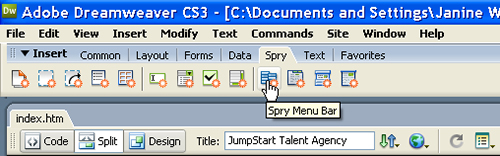
To insert a Spry menu, first open the Spry Insert Bar at the top of the workspace by clicking on the Spry tab. Place your cursor where you want to create the menu in your webpage, and then click on the Spry Menu Bar icon (or go to Insert>Spry>Spry Menu Bar).
STEP 5 Choose Horizontal or Vertical
You can use the Spry Menu Bar dialog to create a menu that displays horizontally across your page with submenu options that drop down below the menu bar. Or you can create a vertical menu bar with submenu options that open to the right of the main menu items. Click on the corresponding button to make your selection and then click OK to insert a generic menu bar into the page. Once the menu bar is inserted, you can customize it by changing the text, colors, fonts, and other options.
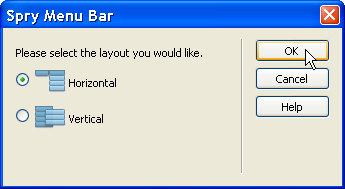
STEP 6 Adjust Alignment
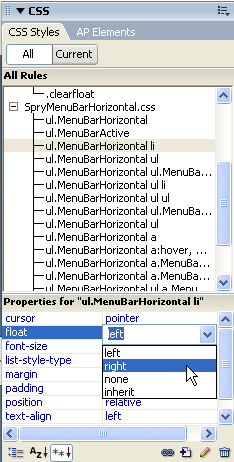
The format of a Spry menu is controlled by CSS; thus, to alter the appearance, you need to edit the CSS definitions. By default, the horizontal menu aligns to the left of the page but you can easily align it to the right by changing the definition of the corresponding style. To change alignment, we need to change the Float setting. Start by selecting the style named “ul.MenuBarHorizontal li” in the CSS panel, and then in the Properties pane below it, click to the right of the Float field and use the drop-down list to select Right instead of Left.
STEP 7 Replace Main Text
When a menu bar is inserted, Dreamweaver populates it with placeholder text: Item 1, Item 2, etc. To add your own text, simply click-and-drag to select the text within each navigation box and then type over it to replace it with the word or words you want to use. As you can see, we’ve replaced Item 4 with Agents, and Item 3 with Talent, and we’ve selected the next item. Note: You can also edit menu items using the Properties inspector, as you’ll see in Step 8.
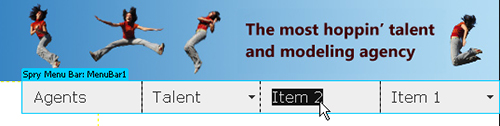
STEP 8 Display Spry Menu Options
To edit the text in the submenus, or to add or remove menu items, you first need to display the Spry menu options in the Properties inspector. To make these options visible, click on the blue tab at the top left of the Spry menu that you inserted into the page. In this example, it’s labeled “Spry Menu Bar: MenuBar1.” When you click on the menu tab, the Properties inspector displays the corresponding Spry options.

STEP 9 Edit Submenu Text
With the Spry menu options open in the Properties inspector at the bottom of the work area, you can edit the submenu text by first selecting the menu item in the leftmost menu field and then selecting the submenu item in the middle menu field. You can edit the text of any selected item in the Text field at the far right of the inspector. In this example, we’ve replaced Item 1.1 with LA Office, Item 1.2 with NY Office, and Item 1.3 is selected so that the text can be edited in the Text field.

STEP 10 Add or Remove Menus and Submenus
You can add menu or submenu items by selecting any item listed in the Properties inspector and then clicking on the plus (+) sign at the top of the corresponding menu field. To remove a menu item, select it and click the minus (–) sign. For example, you can add a third-level menu item by selecting a submenu item and then clicking the plus sign above the third menu field. Here, we’re adding a third-level submenu item, Manhattan, to the submenu item NY Office, which is a submenu item of Locations.

STEP 11 Create and Edit Links
A menu bar, by design, should include links to the main sections and subsections of a website. To turn any menu item into a link, select the item in the Properties inspector and enter the URL in the Link field. You can also use the Browse icon (it looks like a file folder) to locate and select any file in a website and set the link automatically. If you’re setting a link to a top-level menu item, you can also select the text in the main workspace and set the link in the Properties inspector.

STEP 12 Change Text and Background Colors
To edit the text and background colors in a Spry menu, you must edit the corresponding styles. The tricky part is that the style definitions for text and background colors are included in the link styles, which have multiple states. For example, the style named “ul.MenuBarHorizontal a” defines the background and text color that display when a browser first loads a link. However, if you want to change the text or background color that appear when a visitor rolls a cursor over a link, you’ll need to change the definition for the style named “ul.MenuBarHorizontal a:MenuBarItemHover….”
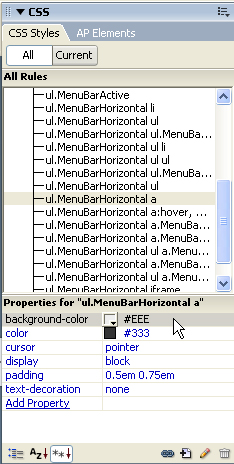
STEP 13 Change the Font Face or Style
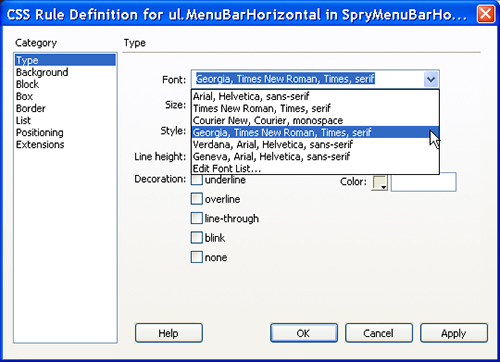
By default, the font in a Spry menu is the same as the page font. Thus, if you’ve created a Body style to specify the page font as Verdana, the Spry menu text will also display in Verdana. If you want to change the font used in the menu without altering the page font, you can add a font definition to the style named “ul.MenuBarHorizontal.” To do so, double-click on the style name in the CSS panel and in the CSS Rule Definition dialog, enter a font face or choose a font collection from the Font drop-down menu.
STEP 14 Preview in a Browser to Test
To test a Spry menu, you’ll need to preview your page in a Web browser, such as Safari or Firefox. Just click on a menu or submenu item to see the drop-down items in action and test the links. Beware: If you have two levels of submenus on the right side of the screen, as in this example, they may extend beyond the page display area.