
Swirly Border Design in Illustrator CS4
A really cool, swirly border design effect
I couldn’t come up with a super-cool or classy name for this effect, so I just called it what it is: a really cool, swirly border design effect. These swirlys and flourishes have become quite popular lately and you’ve probably seen different ways of creating them. We’re going to show you a way that’s not only easy but also fun. Do enjoy!
1 [CREATE A ROUNDED RECTANGLE]
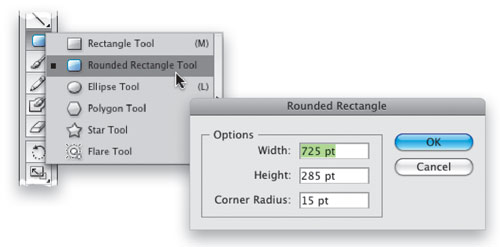
Choose File>New, select Basic RGB from the New Document Profile pop-up menu, and click OK. Click-and-hold on the Rectangle tool in the Toolbox, select the Rounded Rectangle tool from the menu, and click once on the artboard. A dialog will open where you can manually enter the dimensions for your rounded rectangle. Enter a Width of 725 pt, a Height of 285 pt, and set the Corner Radius to 15 pt. Click OK.
2 [APPLY FILL & STROKE TO SHAPE]
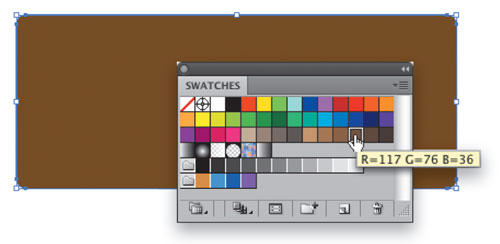
With the shape created, we need to change the color. Open the Swatches panel (Window>Swatches) and choose the brown swatch labeled R=117 G=76 B=36 for the Fill color of the shape. In the Control panel, set the Stroke color to none.
3 [CREATE SMALLER ROUNDED RECTANGLE]
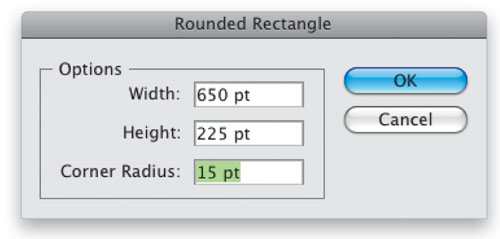
With the Rounded Rectangle tool, click on the artboard once more. This time set the Width to 650 pt, the Height to 225 pt, and keep the Corner Radius at 15. Click OK. This will create a similar shape that’s a bit smaller than the first.
4 [APPLY FILL TO NEW SHAPE; ALIGN SHAPES]
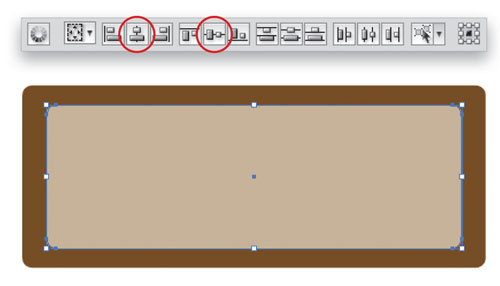
In the Swatches panel, choose the tan swatch labeled R=199 G=178 B=153 for the Fill color of this shape. Set the Stroke color to none. Switch to the Selection tool (V) and select both shapes. Use the alignment icons in the Control panel to center the shapes: Horizontal Align Center and then Vertical Align Center.
5 [COPY SMALLER RECTANGLE; PASTE IN BACK]
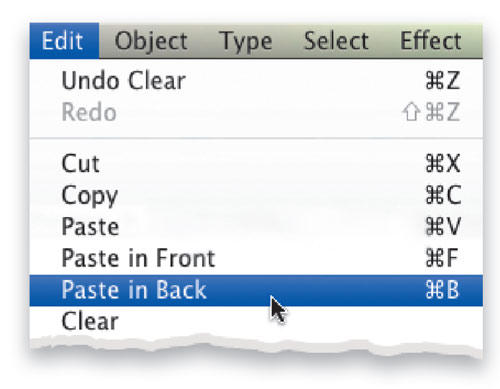
Press Shift-Command-A to deselect the shapes, and then use the Selection tool to select just the front smaller rectangle. Choose Edit>Copy to copy this shape to the Clipboard. Now choose Edit>Paste in Back to place the duplicate one level behind the smaller shape but in front of the larger shape.
6 [SELECT FIRST TWO SHAPES AND LOCK]
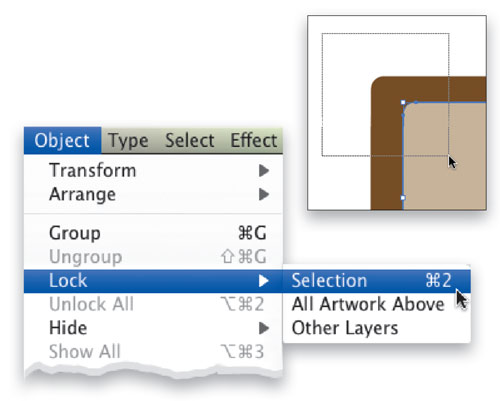
While this new shape is still selected, hold down the Shift key and drag a selection from outside the shapes into all of the shapes. This will select the two other shapes and deselect the one inner shape. Then go under the Object menu, under Lock, and choose Selection. This will lock these shapes in place so we don’t change or move them accidentally.
7 [SELECT CENTER SHAPE]
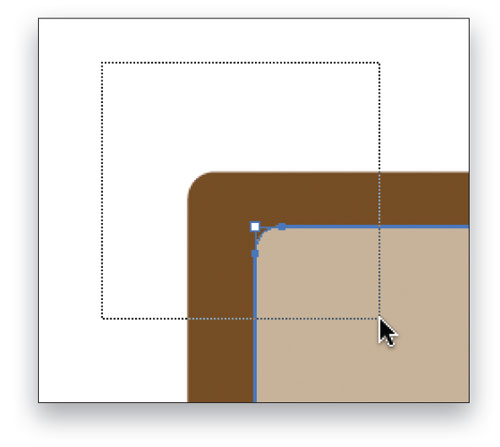
Now drag over the shapes once more. You should only be able to select the inner shape that’s in between the locked shapes. You can test this by dragging the object to the side just a bit to make sure the other shapes are locked. Simply press Command-Z (PC: Ctrl-Z) to undo the move.
8 [SET OPTIONS FOR TWIRL TOOL]
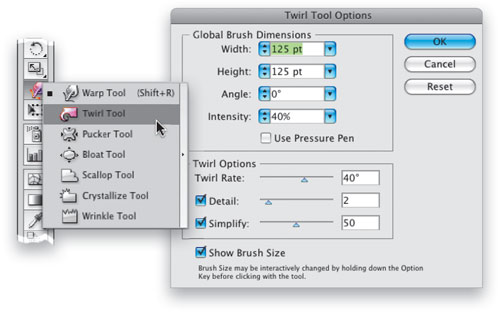
In the Toolbox, click-and-hold on the Warp tool and select the Twirl tool from the menu. Double-click this tool in the Toolbox to open the Twirl Tool Options dialog. Here you can change the brush size and intensity, among other things. Change the Intensity to 40%. For the brush size, enter a starting value of 125 pt for both the Width and Height. Click OK.
9 [TWIRL THE CENTER SHAPE]
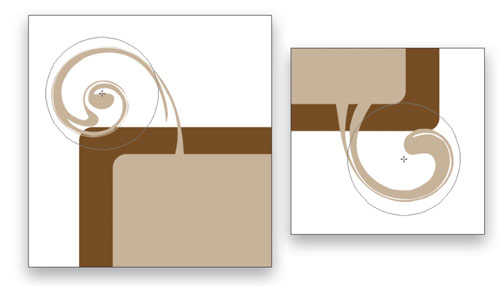
This next step can be a bit tricky and it may take a few tries. It did for me. Anyway, start at the upper-left corner and position the cursor so it’s about two-thirds over the shape. Then click-and-drag the Twirl tool up and to the left. The twirl will start the moment you click and will change as you drag. Try this a few times to get a feel for it. As I said, it may take some practice.
10 [CREATE RANDOM TWIRLS AROUND THE SHAPE]
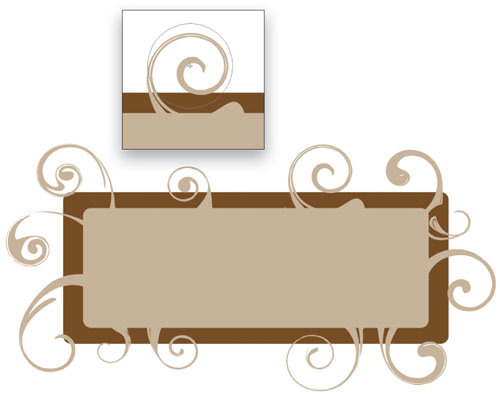
You’ll notice that the twirl direction is counter-clockwise by default. To reverse the direction, simply click to start the twirl and then immediately hold down the Option key (PC: Alt key). Continue to randomly twirl different areas around the shape, varying the directions as you go. You can also vary the size of the brush by pressing-and-holding the Option key (PC: Alt key) and clicking-and-dragging. Add the Shift key to maintain the brush’s proportions.
11 [CHANGE TO OVERLAY; ADD DROP SHADOW]
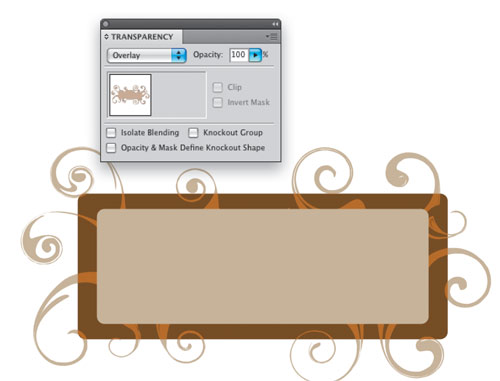
Select the swirly object, and then open the Transparency panel (Window>Transparency). Change this object’s blend mode from Normal to Overlay. As an optional step, go under the Effect menu, under Illustrator Effects, and choose Stylize>Drop Shadow. Depending on the shape and size of your swirls, the shadow settings will vary.
12 [ADD TEXTURE TO FRONT SHAPE]
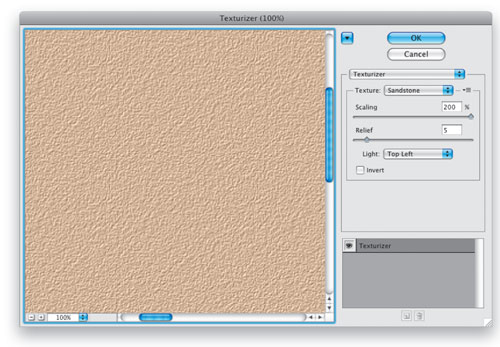
Go under the Object menu and select Unlock All. Select the front shape. Go under the Effect menu, under Photoshop Effects, and choose Texture>Texturizer. Select Sandstone for the Texture drop-down menu, set the Scaling to 200%, Relief to 5, Light position to the Top Left, and click OK. All that’s left is to add text or whatever elements you would like inside your new really cool, swirly border design.
Final Result


Visitor Comments »
Comment by Joann Snell | August 17, 2009 @ 9:00 pm
I did not understand very well steps 6 and 7, if someone would be able to give me a better explanation, I’d appreciate that.
Comment by Juan Miguel Jaramillo | August 18, 2009 @ 12:02 am
verry interesting…all posts has always been so much help…especially for a newbie like me…thanks for all these tutorials
Comment by Denis | August 18, 2009 @ 1:58 am
[...] Swirly Border Design in Illustrator CS4 Corey Barker’s got a great article on using swirly borders in Illustrator CS4. Click on this link to see the tutorial. [...]
Pingback by Tuesday News and Notables | Layers Magazine | August 18, 2009 @ 11:37 am
Enough with the swirls! Designers wake up!
Comment by Al Lemieux | August 18, 2009 @ 12:05 pm
Thanks!
Comment by Lisa | August 20, 2009 @ 2:31 pm
Corey, you rock, dude! That’s a really cool effect! Thanks for this clear and easy to get tutorial!!!
What’s also funny is that you write like you speak! I like that! lol!
Comment by Khemiset | August 22, 2009 @ 2:41 am
Nice post for all newbies in the arena … Thanks for sharing
![]()
Comment by Clippingimages.com | August 23, 2009 @ 3:29 am
Twirly rhymes with squirrelly. Thanks for the info.
Comment by Brent Dunn | August 24, 2009 @ 1:32 pm
Thanks. Please keep up the good work. I’m new at this but it was simple to follow and fun to do.
Comment by Drag Sterling | August 26, 2009 @ 4:31 pm
Thanks a lot! Nice
![]()
Comment by wannaruto | August 26, 2009 @ 7:58 pm
not bad. easy instructions
Comment by Erez | August 27, 2009 @ 1:08 pm
Perfect, for a newbie that just purchase Ai it was totally right on the money! Very detailed on the hows wheres etc.
Comment by ZbearCat | August 29, 2009 @ 5:37 pm
@Juan Miguel Jaramillo
Basically there are 3 shapes, the inner rectangle is copied and pasted in back, once you paste in back, that inner rectangle that you pasted in back should be selected. Hold down shift and click/drag over the entire area. This will unselect the inner rectangle that was pasted behind, and will select the other 2 rectangles. You want to lock those 2 rectangles so you don’t accidentally select and move them. hope this helps, if not post again and I will walk you through it.
And ps
yes, flourishes/mtv type/and grunge brushes are out, as per design trends, so if it’s a professional piece, please try not to use them just to add some flair, use your mind.
regardless this technique can be used for many things other than flourishes, and is well done, thank you layers!
Comment by Tom | August 31, 2009 @ 11:28 am
galing, thanks…
Comment by darwin | September 3, 2009 @ 4:15 am
Great tutorial. I only have one issue — my work is done in CMYK for commercial printing and the texturize option is not available in that mode. I can create it using RGB and then “expand appearance” but I loose editability. I think I can live with that though.
Comment by Diane | September 8, 2009 @ 9:07 pm
Hey……these are some very interesting tips. I bet this will be a great tutorial for all the newbies out there. Thanks
Comment by Ashley Adams : Postcard Printing | September 21, 2009 @ 8:00 am
For some reason my twirlies cut into my rectangle…are they supposed to do that. I see your rectangle still has smooth edges. How?? I’ve tried several times. Please help. Thanks
Comment by Lemisha | September 28, 2009 @ 11:32 am
This is the very good tutorial for beginner illustrator. The explanation are easy to understand. It was so great. Thanks to you.
Comment by Yen | October 12, 2009 @ 11:56 pm
at the final step~ i dont really know how can i add the image ~ the cup into the banner can you tell me how to do it pls. thanks
Comment by long119 | October 15, 2009 @ 5:19 pm
this was very informative thank u this is about the same thing i am doing in class and its very easy to understand u and what ur trying to do my professor trys her best thou so i try to but sometimes its just hard for me but i know i like what im learning so ill stick with it.
Comment by Shaynae Wilson | October 22, 2009 @ 10:48 pm
I missed something. It seemed to go right from the texturizer step to showing a final example with a logo instead and no texture. What happened? Why hasn’t anyone else mentioned this? The tutorial is incomplete.
Comment by LJ | November 9, 2009 @ 2:03 am
this was awesome and easy! Thanks
Comment by erica | November 14, 2009 @ 4:11 pm
Fantastic tutorial – love it, thanks for the clear instructions. It’s gonna take some practice to get my swirls as neat as I would lke!
Lemisha, I did the same as you by inadvertently selecting the top layer instead of the middle which cut into the banner. Try selecting the middle layer and see….it works!
Comment by Marigold | December 2, 2009 @ 8:21 am
Super easy, super lovely! Thanks so much!
Comment by Leslie Smith | December 14, 2009 @ 3:08 pm
Really love your tutorials! Even for people who do not speak English as a first language.
If you ever get to Holland, be sure to beep me up because I’d love to learn more! Haha!
Mustafa
Comment by Mustafa | December 15, 2009 @ 9:47 am
The creativity is amazing!
Comment by Joe D | January 9, 2010 @ 7:04 pm
Is the tutorial missing a few steps , like the logo ?
Is there another part to the tutorial or is that it ?
I would like to know how to make the logo part ( the coffee mug and text )
can someone point me to that tutorial ?
Thanks
Comment by Tony | January 21, 2010 @ 10:24 pm
Perfect
Comment by javed | February 3, 2010 @ 2:28 am
cant you explain in a simpler form!!!!!!
plizzzzz
Comment by danielle | February 16, 2010 @ 1:06 pm
simplr please!!!!
itz kinda like confuzish looking.
Comment by tiffany | February 16, 2010 @ 1:07 pm
[...] Swirly Border Design in Illustrator CS4 [...]
Pingback by 50+ Illustrator Tutorials for Designers | Jan Ray Toledo | February 24, 2010 @ 1:03 am
Leave us a comment

- Dragging an Object Between Documents
- TV Scanline Effect
- Trick to the Glossy Effect
- 3D Text
- Changing Type on a Path


Photoshop
Illustrator
Indesign
Dreamweaver
Fireworks
Premiere
Flash
After Effects
Lightroom
Acrobat


