
InDesign CS3, In Good Form

It kills me when someone sends me a form in Microsoft Word and he or she expects me to fill it out on my computer. Of course, the minute I go to type in it everything starts to move around. So let’s learn the right way to build a form in InDesign (with a cameo appearance of Acrobat to make it fillable).

1 CREATE A TEXT FRAME
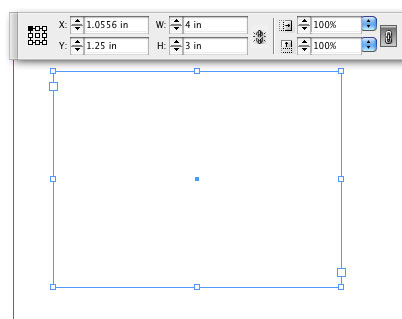
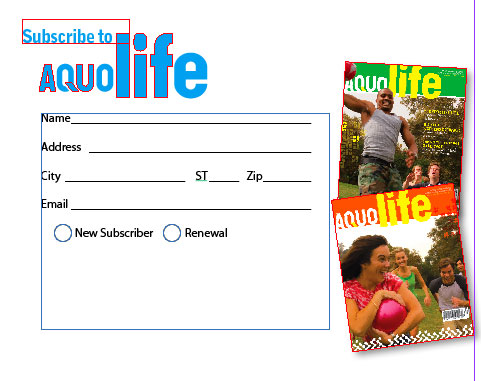
Either create a new InDesign document or open an existing document and navigate to a blank page or blank area of a page so that you can create a text frame. In this example, we’re going to create a magazine subscription card, so create a 4×3″ text frame using the Type tool (T). To make it exactly 4×3″, select the text frame after you create it and key in those measurements in the Control panel.
2 KEY IN YOUR FIRST FIELD NAME
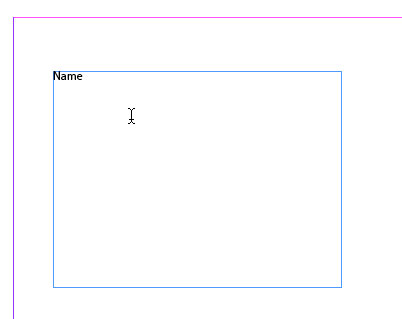
At this point we need to key in the name for our first field. For this example, type in the word “Name” in the text frame. You’ll be tempted to jump ahead and start creating all the other fields and I commend you for your eagerness, but you might want to read the next step first.
3 BRING UP THE TABS RULER
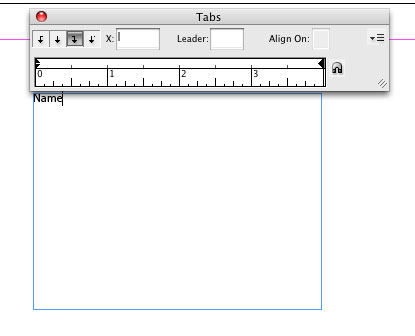
You could create the rest of your fields and then start drawing the lines where people will fill in their information; however, if you ever need to make changes such as font and font size, then you’ll have to move your lines too. That’s why were going to use leader tabs instead. Bring up your Tabs ruler by choosing Tabs from the Type menu. By default the Tabs ruler magnetically sticks to the top of your text frame. This will help you line up your tabs.
4 SET YOUR FIRST TAB
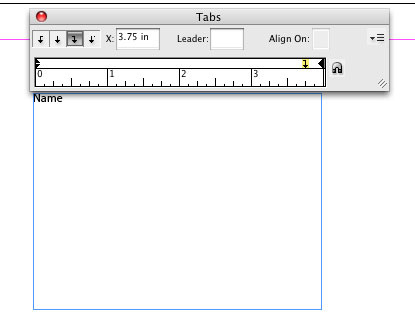
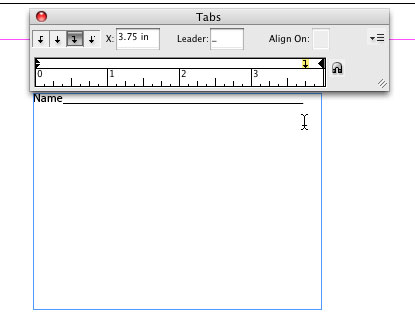
Since the Name field is going to take up the entire top line, we’re going to set our tab at the far right. Select a Right-Justified Tab (the third icon from the left) in the Tabs ruler and click just above the ruler at the 3.75″ mark. Don’t worry if you don’t click in the exact correct position because you can move the tab afterwards.
5 ADD A LEADER
Now that you’ve inserted your tab, the next thing you have to do is give it a leader of an underscore character (_). So with the tab you just placed still selected, click in the Leader field on the Tabs ruler and key in an underscore character (Shift-Hyphen). Now click back into your text frame after the word “Name” and press the Tab key on your keyboard. You should see an underline from the word “Name” to your tab stop. Hit Return (PC: Enter) twice to skip a line.
6 ADD MORE FIELDS AND LEADER TABS
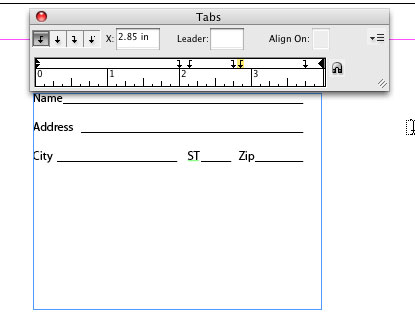
Key in the word “Address” and press the Tab key to create the underline. The next line gets a little more complicated because we need to set both tabs and leader tabs for multiple fields. Use Left-Justified Tabs (the first icon) for the field names and Right-Justified Tabs for the leader lines. Set the “City” leader tab at 2″; set the tab for “ST” at 2.15″ and its leader tab at 2.75″; and set the tab for “Zip” at 2.85″ and use the existing leader tab at 3.75″. Don’t forget to add the underscores for the leader tabs.
7 MAKE SOME RADIO BUTTONS
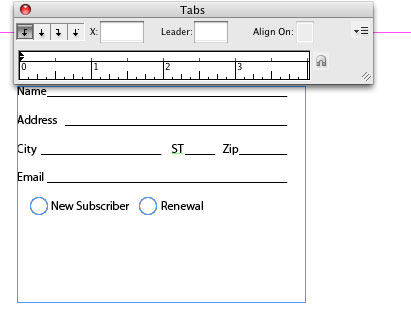
The next field that we want is Email. In order to get back to one long leader tab, remove the extra tabs from only that line by simply dragging them off the Tabs ruler. Next, let’s create some radio buttons. On the next line, type “New Subscriber” and “Renewal.” (Now that you got the hang of tabs, you’ll probably want to create tabs for these two words to give you room for the radio buttons.) Use the Ellipse tool (L) while holding the Shift key to create circles in front of each word.
8 CREATE A NEW LAYER
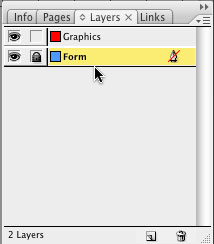
Our form fields are done. Now let’s lock it down and create a new layer for the rest of the subscription card layout elements. Bring up your Layers panel. Hold down the Option key (PC: Alt key) and click the Create New Layer icon at the bottom of the panel. This will allow you to create a new layer and name it all at the same time (we named ours “Graphics”). Double-click the name of the original layer and rename it “Form.” Then click the little box to the right of the Eye icon to lock the Form layer.
9 ADD GRAPHICS; EXPORT TO PDF
At this point you can place other text and graphics on your page. Be sure not to cover up any part of your form’s text or lines. After your design is complete, go to the Adobe PDF Presets under the File menu and choose Smallest File Size (or the one that best meets your needs) to export this InDesign document as a PDF. Be sure that View PDF after Exporting is checked in the dialog.
10 RUN FORM FIELD RECOGNITION
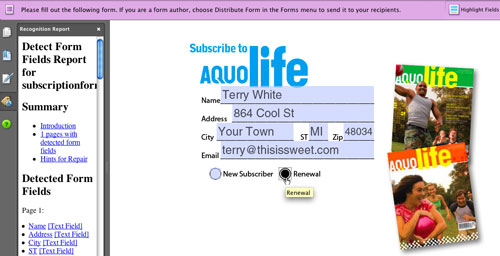
This is where the magic happens. Choose Run Form Field Recognition from the Forms menu in Acrobat 8 Professional. This should create form fields over your existing lines and circles. Click the Highlight Fields button to make sure the fields were recognized. Anyone can now type into this form with Adobe Reader or the full version of Acrobat. So now you can send a form that’s actually usable.

[For an in-depth look at creating and editing forms in Acrobat, check out Getting into Form, Part 1, and Getting into Form, Part 2 ]

Visitor Comments »


Excellent! Very useful, thanks a bunch!


Comment by Kim Poutre | June 27, 2008 @ 10:19 am


cool! I’ve been waiting for this like…. ages!


Comment by Reuben | June 28, 2008 @ 4:36 am


excellent tip!!!
never thought of that before!


Comment by J-Five | June 30, 2008 @ 10:07 am


i know a little about adobe in design but i want to know since i have books i need to do so plz if anyone is interesting in helping me to know the basics in In design so i can make the book plz contact me thx a lot


Comment by amani | July 1, 2008 @ 6:41 am


I have been to this site 3 times this week, and always get a solid answer.


Comment by spencer | July 2, 2008 @ 2:09 pm


thanks


Comment by mary _g | July 5, 2008 @ 2:39 pm


This is the first time i came to know about Adobe indesign, its realy ful full my long awaited thursty about making book magazine. i appreciate adobe company for such revolutionalry success in design software


Comment by Anwar | July 10, 2008 @ 7:32 am


This is EXACTLY what I have been looking for!
Thanks!


Comment by Elizabeth Stevenson | July 14, 2008 @ 12:52 pm


Quick question–if you have Acrobat 8 Professional and Live Cycle Designer then why use InDesign? Just curious if you see any advantages–that’s all. Thanks.


Comment by pghalex | August 14, 2008 @ 2:52 pm


Thanks so much for this! This tut was exactly what I needed today!


Comment by Lisa M Yarost | September 9, 2008 @ 1:06 pm


I have the same question as pghalex – why use InDesign when you have Acrobat 8 (or 9) and LiveCycle Designer?


Comment by Deborah | October 21, 2008 @ 1:49 pm


Awesome tutorial! Thanks a bunch for doing this!


Comment by Coshie | November 14, 2008 @ 4:56 pm


“Why use InDesign when you have Acrobat 8 (or 9) and LiveCycle Designer?” — Unfortunately if you are Mac user Adobe has not deemed it necessary to give the Mac community the same tool set as the Windows community; LiveCycle Design is Windows only. This is easiest tutorial I have seen so far to explain how to create a interactive PDF form on the Mac. Admittedly more cumbersome than using LiveCycle Designer.


Comment by Ethan | November 18, 2008 @ 1:54 pm


This is a great help. Been reluctant to learn the nuts and bolts of InDesign. Way too used to Quark. This tutorial really refreshed my memory. Thanks


Comment by Tom | January 15, 2009 @ 1:50 pm


Thank you very much.. Great Tutorial


Comment by Barbara | January 30, 2009 @ 12:27 pm


This tutorial was helpfull thanks.

I created a form. In the form is a part with multiple lines. Acrobat recognises this as seperate fields. Is there a way to make it one field, keep the lines visible in acrobat and keep the lay out of the form (distance between parts)


Comment by remco | February 10, 2009 @ 11:56 am


1800s exert suggest produce majority energy


Comment by atildaeven | February 13, 2009 @ 2:47 pm


this tutorial was a life saver …thank you!!!


Comment by Jessica | March 1, 2009 @ 1:10 am


this was very difficult to follow and i got really confused, but in the end, it was beneficial to me and my classmates. this made my form look astounding and i received an excelled grade.


Comment by Danny Phantom | March 19, 2009 @ 8:21 pm


this saved me sooooooo much time. Thanx!@!!


Comment by Steve K | March 22, 2009 @ 5:39 pm


I spent all yesterday in an endless loop because I used the wrong search terms. This is exactly what I need and tried so hard to find.


Comment by Ethel Powers | June 17, 2009 @ 12:53 pm


My underline didn’t show up – do I just apply that in my type panel or is there a crucial setting that I am missing?


Comment by Jesse Martin | July 5, 2009 @ 9:50 pm


my underlines don’t show up after I tab over, am I missing something?


Comment by Jesse Martin | July 6, 2009 @ 12:28 am


Ok, I answered my own question, but in case someone else has this issue: make sure that you have the RIGHT or LEFT (depending) alignment tab AND make sure that you put the underscore (_) in the leader BOX in the TAB pallete.


Comment by Jesse Martin | July 6, 2009 @ 12:48 am


На нашем сайте не нужно платить за просмотр самое лучшее порно онлайн – у нас все онлайн порно бесплатно юные, смотрите сучки порно онлайн и наслаждайтесь зрелищем


Comment by porndscg | July 26, 2009 @ 9:44 pm


This was a HUGE help!!!! But, now that I have a form created, there are sevearl radio buttons that are not being recognized as a field in the pdf!!! Any suggestions on how I can fix that?


Comment by shannon | August 3, 2009 @ 4:22 pm


Сайт, где не нужно платить за просмотр старое порно смотреть онлайн – у нас все онлайн порно со школьницами, смотрите любительское порно видео онлайн


Comment by nichdfld | August 3, 2009 @ 7:04 pm


[...] InDesign CS3, In Good Form [...]


Pingback by 20+ Stunning Tutorials of Adobe InDesign by LayersMagazine | X Design Blog | August 15, 2009 @ 11:55 am

Leave us a comment

Comments RSS | TrackBack URI

Back to Top


Advertisement
Creative Suite Tutorials
  1. Photoshop Photoshop
  2. Illustrator Illustrator
  3. Indesign Indesign
  4. Dreamweaver Dreamweaver
  5. Fireworks Fireworks
  6. Premiere Premiere
  7. Flash Flash
  8. After Effects After Effects
  9. Lightroom Lightroom
  10. Acrobat Acrobat

Get the latest tips, tricks and news delivered straight to your inbox.

From our Partners
Subscribe to Layers Magazine


  • Back to the Layers Magazine Homepage
  • Creative Suite Tutorials
  • Layers Magazine
  • Reviews on top products
  • Layers Magazine Reader Forums
  • Subscribe to Layers Magazine